
Q: I'm trying to access SAPC, but the login page is not loading. Is the system down?
A: When trying to access SAPC, if the page does not load, please try the following steps to resolve:
- Try logging in using a different browser (e.g. Edge or Firefox). If you're able to login using that browser, please go to the next step. If you're not able to load the page, even using a different browser, please submit a ticket to financeappsupport@avisonyoung.com.
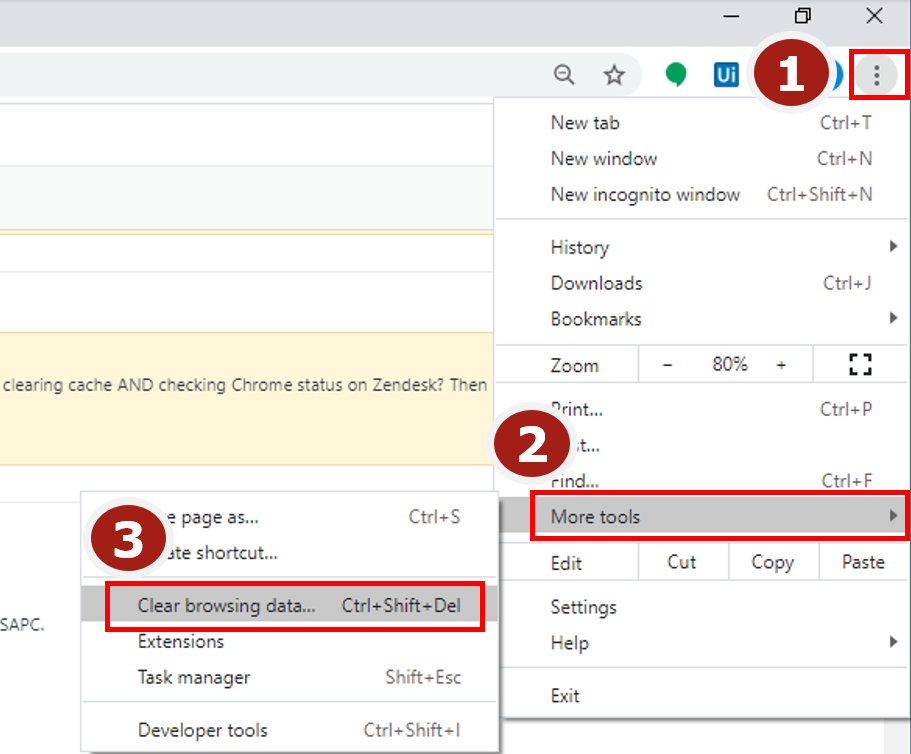
- Clear your cache and restart your browser. See below screenshot for direction on clearing your cache in Chrome.
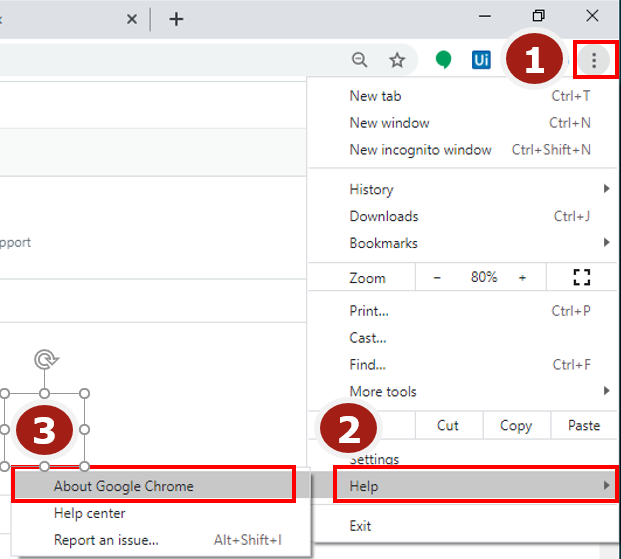
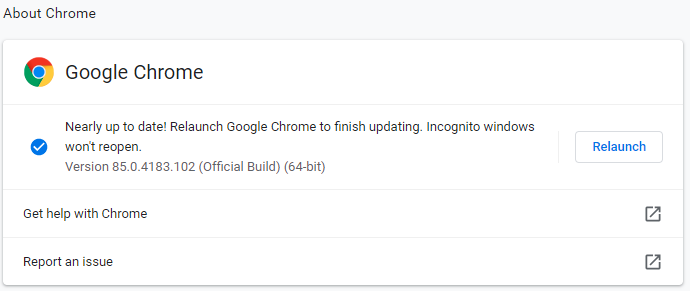
- Ensure Chrome is up to date. Go to About Google Chrome and check to see if your version is up to date. When you access the page, you will either see that it's up to date, or it will update when you access the page and tell you to restart the browser if it's been updated.
- If the above options still have not resolved the issue, restart your computer and try again.
If you still cannot access the page, please submit a ticket to financeappsupport@avisonyoung.com.
Q: A broker cannot log into SAPC and they are not receiving the password reset email. Please help them log in?
A: Ensure they are requesting the password reset for their SAPC account using the correct username:
- firstname.lastname@ay.cal - Username is NOT your AY Email Address
- If you've requested the password reset email with the correct username and you have not received the email:
- Check to ensure Mimecast has not blocked the email
- Check your Junk/Clutter folders
After performing these steps and the email has not yet been received, submit a ticket to the finance team at financeappsupport@avisonyoung.com
Q: I'm not seeing the expected results when running the Custom Revenue report. Please help!
A: Please review the items below:
- Ensure you are using the correct parameters, always use the Rev rec Start and End dates when running the Custom Revenue report. The system generates revenue recognition based on period, not necessarily the date the deal was processed in Apto
- Always use the Start date of the first day of the month (i.e. June 1, 2020) and End date of the last day of the month (i.e. June 30, 2020). This is applicable even when running for partial month data.
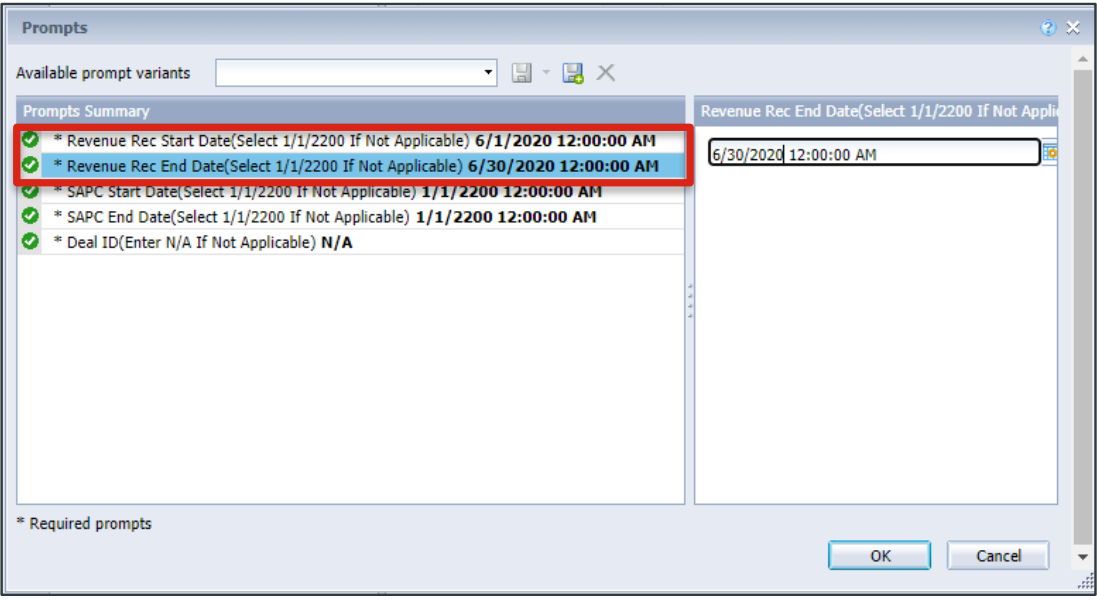
- Always use the Start date of the first day of the month (i.e. June 1, 2020) and End date of the last day of the month (i.e. June 30, 2020). This is applicable even when running for partial month data.
- Deals must be Approved and Invoices must have Revenue Recognized = Yes in Apto for the information to populate on the Custom Revenue Report in SAPC
- If you are expecting a deal on the report and don’t see it, check to ensure these two conditions are met.
- A reminder that deals will not show on this report until the nightly SAPC run. If the deal was entered today, check the report tomorrow.
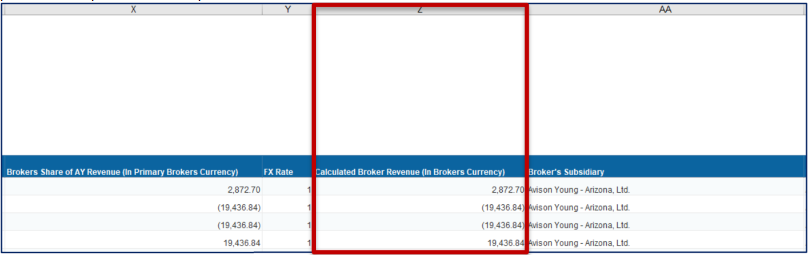
- Reporting Revenue - A reminder that due to the changes made to the Custom Revenue report, when reporting on your monthly revenue, use Column Z, Calculated Broker Revenue (In Brokers Currency) to report revenue for your market in your local currency
Q: I need to report on a Broker's revenue for his contract year. How do I do that?
A: When reporting a Broker’s revenue based on Contract year, which can start and end mid-month, use the Rev Rec Start and End dates as indicated above.
- Export to Excel and filter the report to exclude Compensation dates that fall before/after the contract year.
Comments
0 comments
Please sign in to leave a comment.