
Summary:
This bot will open up an Alteryx Workflow on the remote machine, which is located inside the bot package file. It will then modify a "dependency" within the workflow to save the output file in a specific location, before uploading that file to DropBox for the end users. The purpose of this bot is to execute the Alteryx workflow on the Bot Machine rather than the user's machine, and upload automatically.
Process Owners: Kevin Kaczynski
Bot Owner(s): Dan Hogfelt
Developers: ReTransform, Dan Hogfelt
Relevant Systems:
- Alteryx
- Excel
Business Continuity Plan:
If automation doesn't complete by 9am EST, Manually start the bot 1 (one) additional time. If still fails then Process Owner(s) to follow the below steps to generate the report manually while the issue is diagnosed and resolved.
- Open Alteryx Application
- Open file "Check Register 10.28 Bot Prod.yxmd"
- Modify Dependency and run Alteryx workflow
- Save output file to https://avisonyoung.app.box.com/folder/157253617767
Runbook:
The runbook should provide information to support the bot in the case that any issue occurs.
If Bot Fails: Should Receive an email saying that bot failed. In this case, go to the production orchestrator and download the recording which will show the screenshots as the bot failed. Use these screenshots to perform a root cause analysis. A screenshot may also be provided at the time of the error, depending on what error occurred.
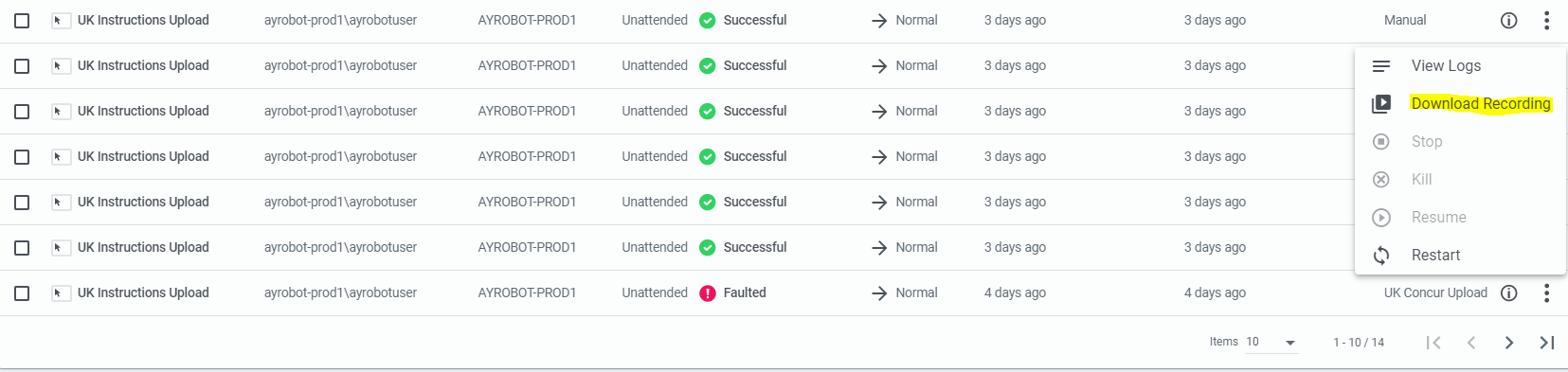
Password Incorrect/Expiration: If the password is incorrect, password will need to be reset by following the below :
If Alteryx Password is incorrect, log a ZenDesk Ticket with Finn-Finance Apps Security Form. This issue will result in account being locked out for ~30 minutes.
Once the password is reset, connect to the remote machine which is executing the Alteryx Workflow, open the Alteryx Workflow, and then update the password for each of the "input" activities.
Alteryx Workflow can be found at: "C:\Users\ayrobotuser\Documents\AP Data Workflow\Check Register 10.28 Bot Prod
Note: This file path will be unique for each version, replace 1.0.24-alpha.22 with the most recent package.
To update the password for each activity, select the "input" icon in the workflow and reconnect to NetSuite ODBC with updated password.
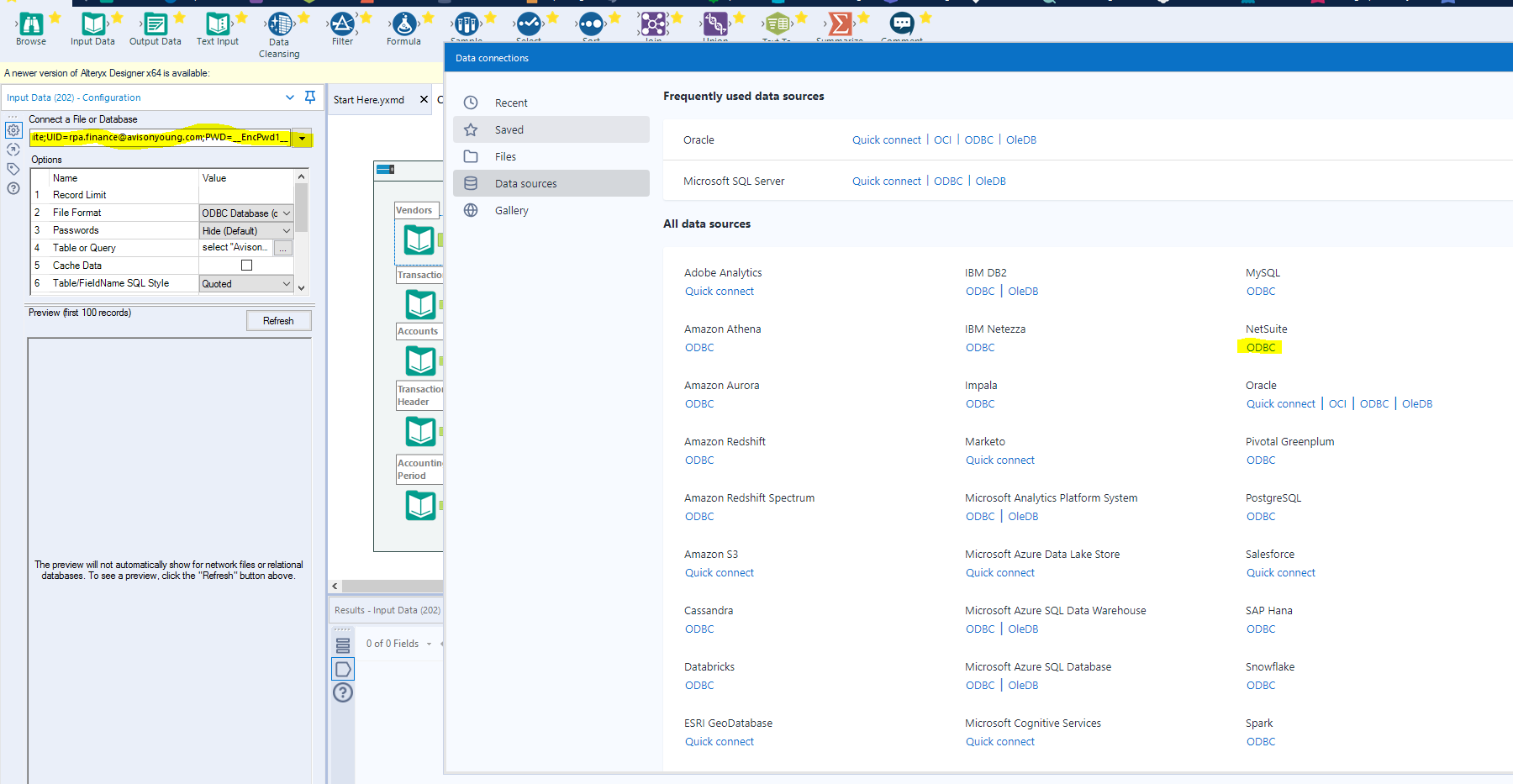
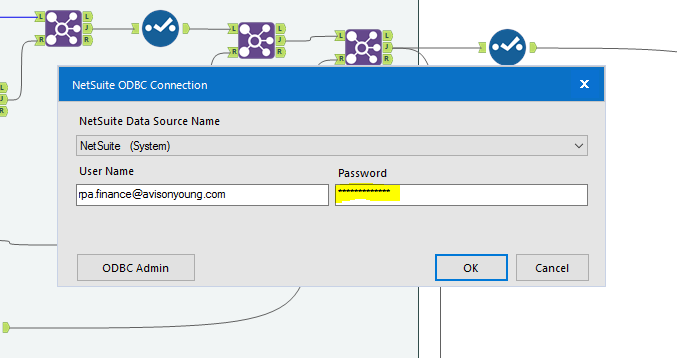
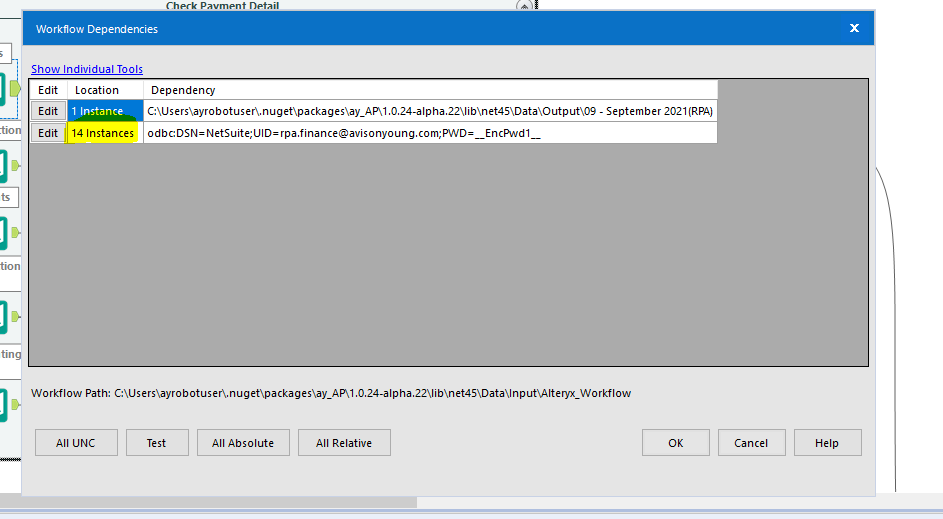
Note: This will need to be done for each input, there are 14 inputs, you can check which ones are updated are which ones aren't by navigating to Options -> Advanced Options -> Workflow Dependencies. There are 14 in total.
Comments
0 comments
Please sign in to leave a comment.