
Summary: Box Activities are used to interact with Box in order to download, upload, create folders, and any other activities that take place within Box.
Setup:
1. Install Package
To install the package to use Box Activities, download the below package name from Orchestrator. The Box account we are using is tagged as "UIPath"
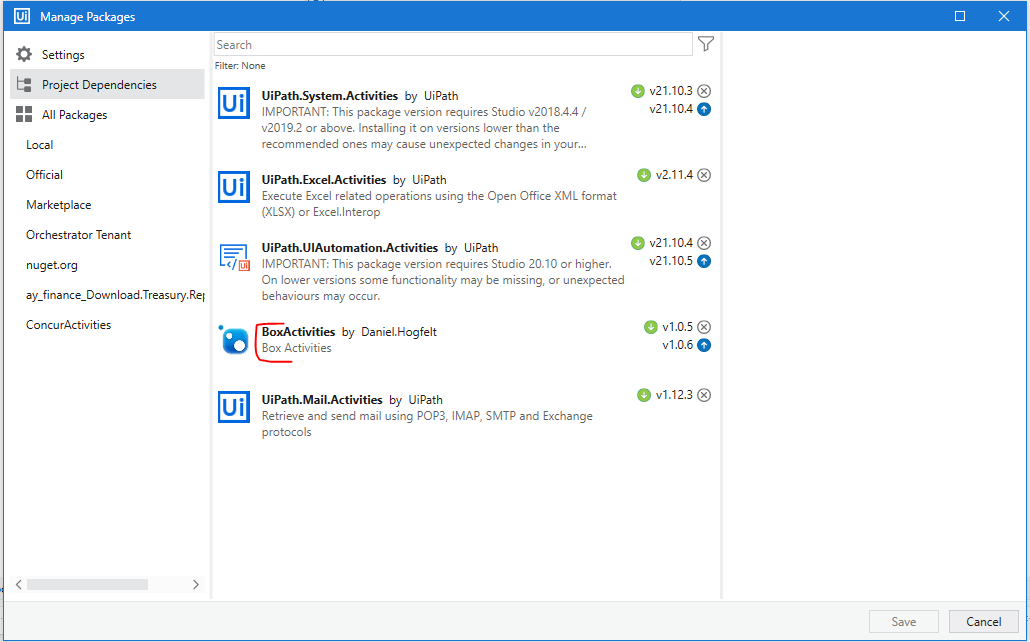
2. Provide Access to Box Folder to Bot Account.
In order to use these activities, the bot account needs access to the particular folders in Box. To share the folder in Box, go to "Share" and enter AutomationUser_1588976_UBSbhmtO4y@boxdevedition.com

Save JWT Token: Save JWT Token file in "Data/Input" Folder in Package that needs to call the DropBox activities. Contact Daniel.Hogfelt@avisonyoung.com for this file.
Download File from Box
To Download File from Box, search the activity named "DownloadFileFromBox"
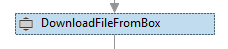
There are 3 "IN" arguments that need to be passed to the Activity, and 1 "OUT" argument.
- in_FileID - This is the File ID from Box. This can be obtained by navigating to File in Box, and getting the ID From the URL.

- in_Local_File_Path - This is where you would like the file to be downloaded on the local machine. You can either leave the file name and extension blank, or define it. Examples below - both will work.
"C:\Users\Daniel.Hogfelt\Downloads\"
"C:\Users\Daniel.Hogfelt\Downloads\TestFile.png"
- in_JWT_Token_Path - This file contains authentication requirements for Box Activities. This represents a file path of below file. contact daniel.hogfelt@avisonyoung.com for details.
Example: "C:\Users\Daniel.Hogfelt\Downloads\BoxConfig.txt"
Note: Option to "Overwrite" is on, so if there is a file with the same name on the local machine, it will be overwritten.
- out_DownloadSuccessful - This is a Boolean value that will be True if the download is successful. if the download fails, it will not be true.
Upload File to Box
To Upload a file to Box, search for the activity "UploadFileToBox".
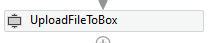
There are 4 arguments that need to be passed into the activity, and 2 that need to be passed out of the activity.
- in_Box_Folder_ID - Each folder in Box has a specific ID, navigate to the folder and get the ID from the URL. Example Below.

- in_JWT_Token_Path - This file contains authentication requirements for Box Activities. This represents a file path of below file. contact daniel.hogfelt@avisonyoung.com for details.
Example: "C:\Users\Daniel.Hogfelt\Downloads\BoxConfig.txt"
- in_Local_Folder_Path - This is the file location on your machine that you would like to upload to Box.
Example: "C:\Users\Daniel.Hogfelt\Downloads\TestFile.png"
- in_File_Name - This contains the name of the file and extension that Box should display. This can be different from the current name of the file being uploaded.
Example: "TestFile2-14-2022.png"
Note: If a file with the same name already exists in Box, a new version of the file will be added.
- out_UploadSuccessful - This is a Boolean value that is set to true if the file has been uploaded (or version uploaded).
- out_File_ID - This is the File ID in Box of the uploaded File if it needs to be used later in the process.
Create Folder in Box
To Create a Folder in Box, search for the activity "CreateFolderInBox"

There are 3 arguments that need to be passed to the activity, and 1 that is passed out of the activity
- in_Folder_Name - This is the name you would like the folder to display in Box
- in_Parent_Folder_ID - This is the ID of the Parent Folder for the folder to be created under. If there is no parent folder, as this should be in the "root" folder, pass in the value 0.
- in_JWT_Token_Path - This file contains authentication requirements for Box Activities. This represents a file path of JWT file. contact daniel.hogfelt@avisonyoung.com for details.
- out_Folder_ID - This is the Folder ID created by Box for the specific folder. This is needed if you want to place a file in this folder later in the process.
- out_FolderSuccessful - This is the Boolean value set to True if the folder is successfully created.
Note: If the Folder already exists, then nothing will be done, and the ID of the existing folder will be passed out in out_Folder_ID.
List Files in Box
To check contents of a Folder in Box, search for the activity "ListFilesInBox"

There are 2 arguments that need to be passed to the activity, and 2 that is passed out of the activity
- in_FolderID - This is the ID of the folder for which you would like to list contents. If you want to list contents for "root" folder, pass in the value 0.
- in_JWT_Token_Path - This file contains authentication requirements for Box Activities. This represents a file path of JWT file. contact daniel.hogfelt@avisonyoung.com for details.
- out_Files - List of files of type BoxFile. Each BoxFile item will have properties (e.g. Name, ID, Created At etc.).
- out_Folders - List of folders of type BoxFolder. Each BoxFolder item will have properties (e.g. Name, ID, Created At etc.).
Note: If folder doesn't contain any files or folders, both out arguments will be empty lists.
Delete Files in Box
To delete a file from a box folder, use the "DeleteFileFromBox" Activity.

There are 2 arguments that need to be passed in, as well as 1 argument being passed out.
- in_File_ID - the File ID in Box to be deleted
- in_JWT_Token_Path - Location of authentication config file to be referenced
- out_Success - Boolean variable to check that file was deleted successfully. "True" for Deleted and "False" for error.
Comments
0 comments
Please sign in to leave a comment.