
Summary: NetSuite activities allow developers to reuse basic components related to NetSuite.
Setup:
1. Install Package
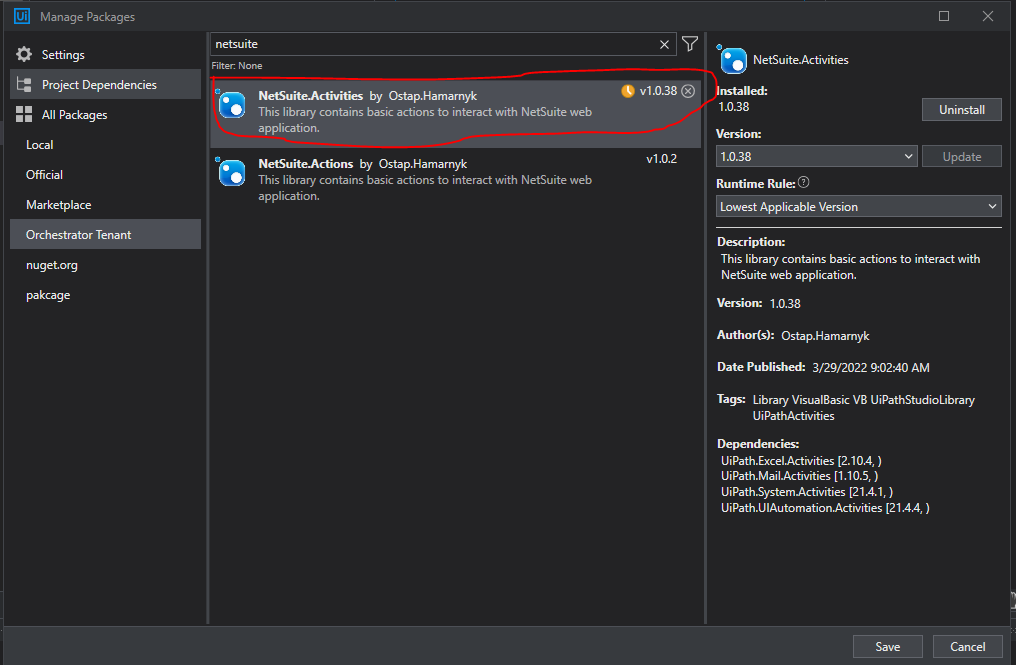
To install the package to use NetSuite Activities, download the below package name from Orchestrator.
Login
To use Login activity, look for NetSuite Activities on the Activities pane and add Login activity to your workflow.

There is a number of required arguments and few optional arguments. Details on some arguments will be outlined below

Required Arguments:
- in_Username - username to login to NetSuite
- in_Password - password for the username in SecureString format
- in_URL - URL for NetSuite login page as URLs might differ based on environment
NetSuite login page may sometimes ask the user to answer security questions. For the bot to successfully recognize and answer those, a specific logic has been used. So, the answers for security questions are stored in Orchestrator Assets. The naming convention for security questions is the following: [shortVersionOfSecurityQuestion]. For instance, if the security question is "Where did your father and mother meet?" the asset name would be "FatherAndMotherMeet" and value would be full question, in this case "Where did your father and mother meet?". The argument is expecting comma separated keys(unique reference to security questions assets), so if there are multiple questions, you can list all of them and the bot can also identify all of them as NetSuite randomly showing one question as an additional security measure.
The Prefix argument is to avoid confusion when other accounts are added to NetSuite for the bots to use. The prefix naming convention is ProcessName_SC_. This will also be added to asset name and the bot will look it up during the runtime.
_in_Prefix - prefix for the security answer credential asset name. It is appended to the security question to get the security answer.
- in_SecurityQuestions - comma separated identifiable parts of questions (or full questions) in string format. It is case insensitive.
Optional Arguments
in_BrowserType - browser type where the process would be executed.
in_Timeout - timeout for the pages to load. The default value is 30, but if the page would take longer to load, it can be increased to avoid exceptions.
in_OrchestratorFolderPath - orchestrator folder path to access credential assets in case they're stored in a different folder from the bot's execution.
Select Role
Sometimes you need to change the user role when you're processing items in NetSuite. To do that, you need to use Select Role activity:
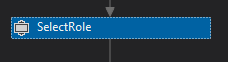
Just like previous activity, this one has required and optional arguments:
Required Arguments
- in_AccountName - the account name you want to run the process in. The bot will change the account if it is not already selected
- in_Environment - the environment you want to run the process in. e.g. Sandbox or Production
- in_Role - role of the user. The bot will also change it if it's not already applied.
Optional
- in_Timeout - timeout for the pages to load. The default value is 30, but if the page would take longer to load, it can be increased to avoid exceptions.
All of the above will be validated by the bot to make sure the right account, environment and role is selected before processing the items.
Logout
This activity simply logs out of the NetSuite.
You just need to provide the Title of the page (wildcards are allowed e.g. *NetSuite*) and specify if you need to close the tab once the user is logged off.
in_CloseTab - Defaults to True. If you need the tab stay open, please set the value to False.
in_Title - [Optional] - If the tab title is different for some reason, please specify the tab name so the bot can attach to the page.
Comments
0 comments
Please sign in to leave a comment.