
STEPS TO RUN THE VALUATION TENANCY SCHEDULE PROCESS BOT
1)Install UiPath Assistant(Please refer link on installation steps: https://avisonyoung.zendesk.com/hc/en-us/articles/7459083757197-Download-and-Setup-for-Attended-Bots)
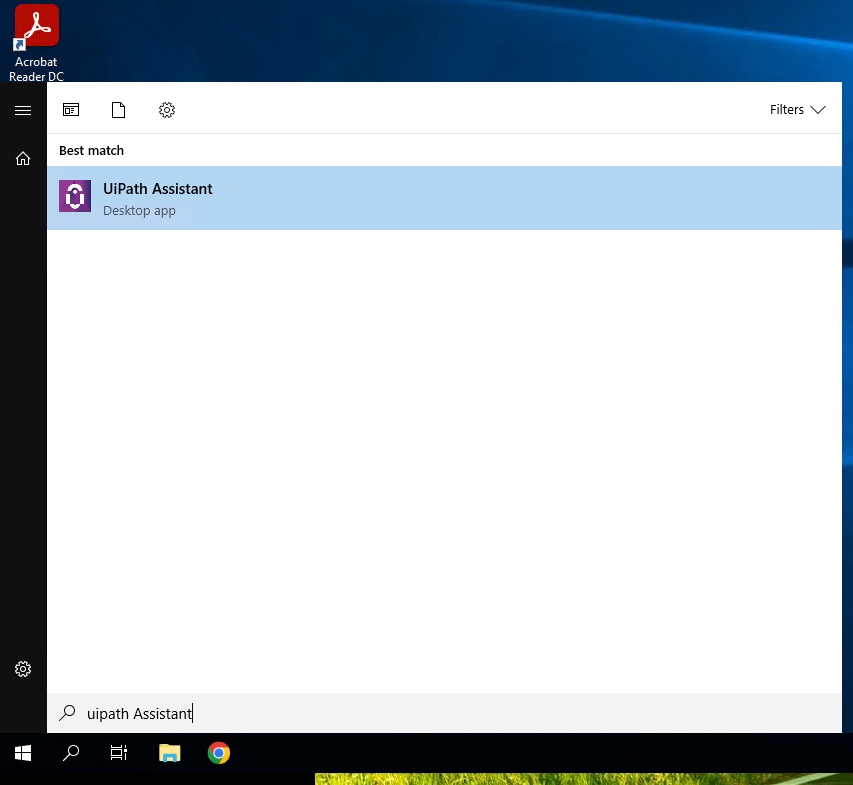
2)Open UiPath Assistant (from windows start menu)Upon success: name robot (name is irrelevant)
Upon success: name robot (name is irrelevant)
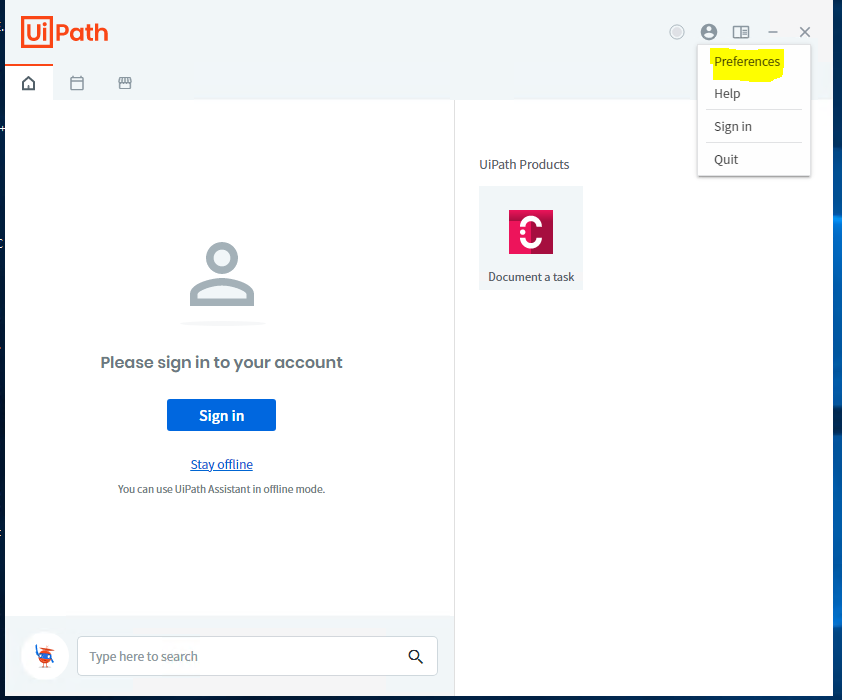
3) Go to Preferences - Orchestrator settings
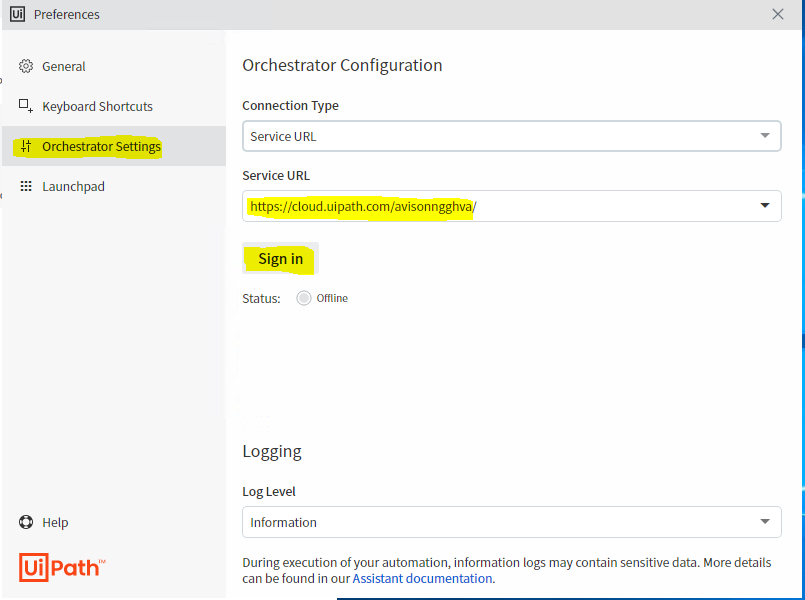
4) fill in Service URL with: https://cloud.uipath.com/avisonngghva/ and click on Sign in
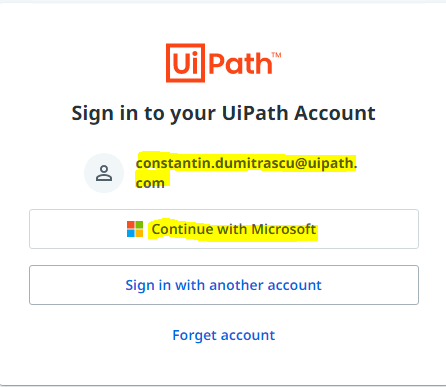
5) Select user account
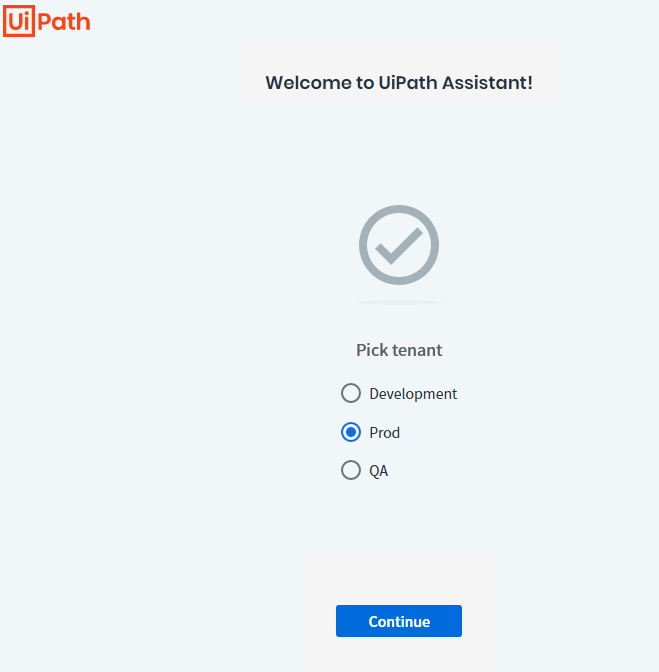
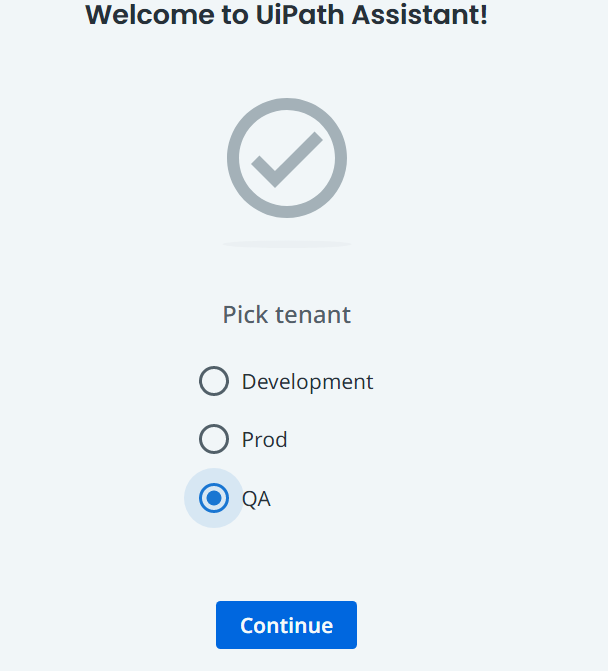
6) Select PROD tenant - If running in Production Else If running for UAT (user acceptance testing) then select QA as tenant and click on Continue
7) Make sure you follow the rule set for the files attached below

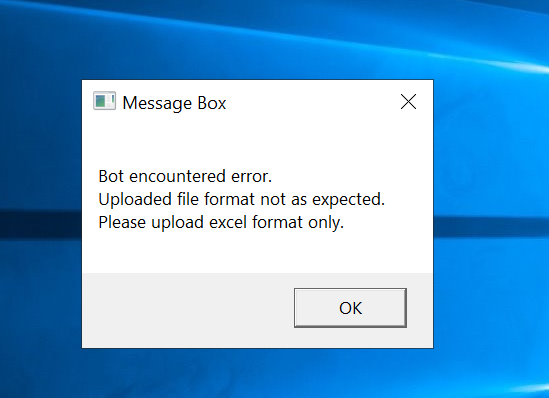
In case Current or Historic file format is different from excel, then the user will be notified with exception details in a message box and the process will stop:
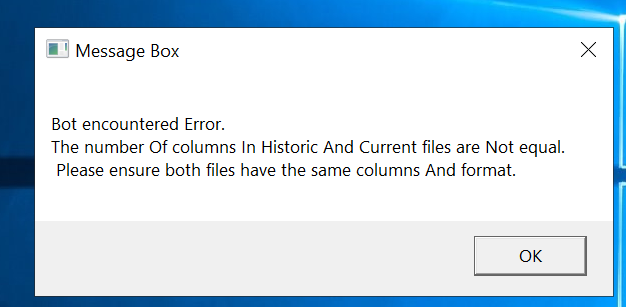
In case the current and historic files have a different number of columns or format, then the user will be notified with exception details in a message box and the process will stop:
8) On the left side - processes list (search bar under processes list). Search for "Valuation Tenancy Schedule"
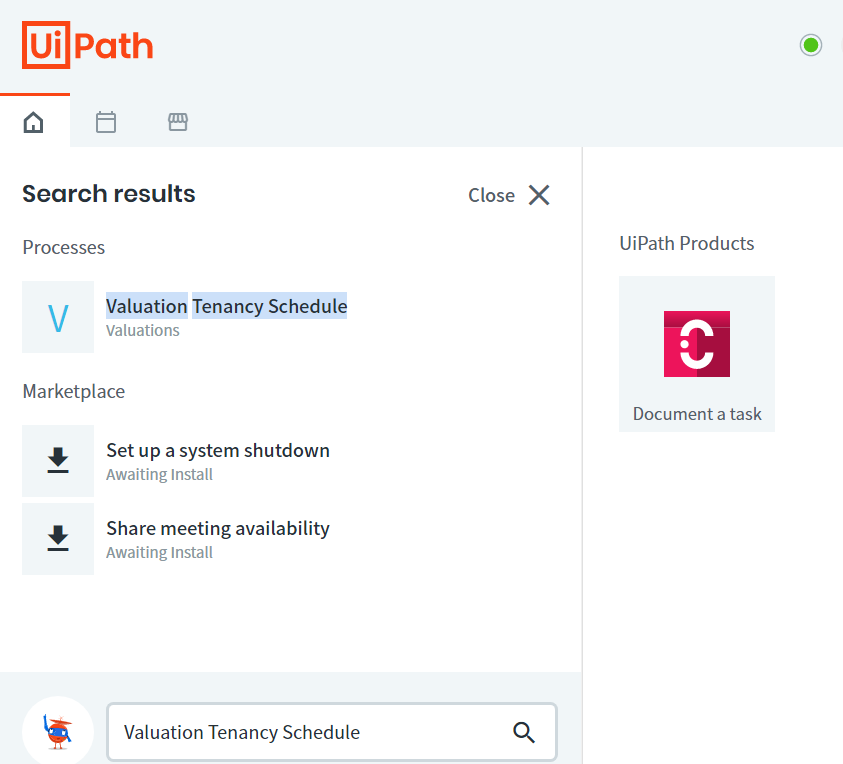
9) Click on process name and use Play or Run button
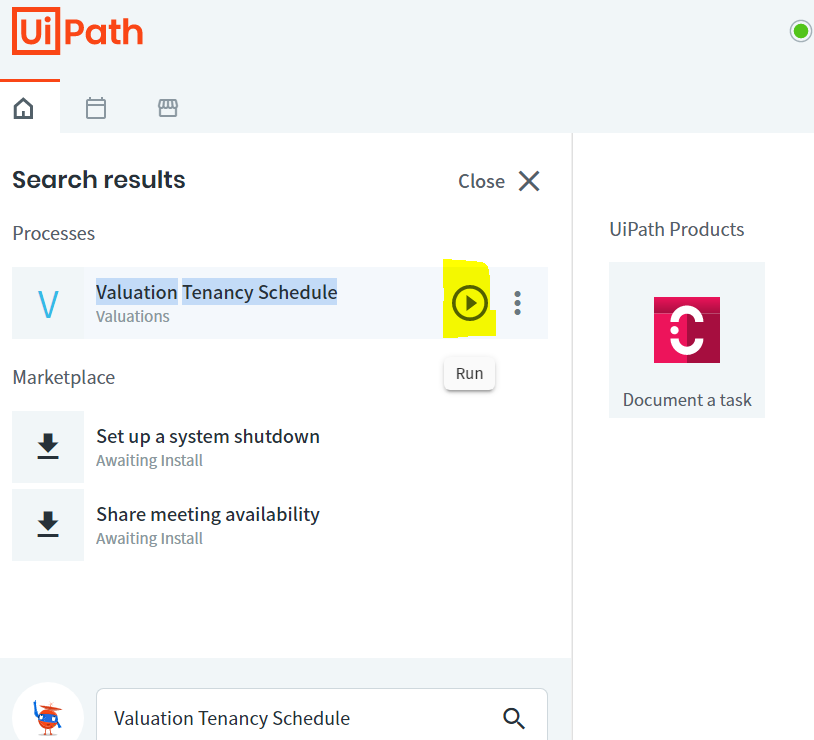
10) Green icon appears on the taskbar indicating the process has started

11) Select desired Country, input client name, select Historic and Current file to be processed and click on Submit.
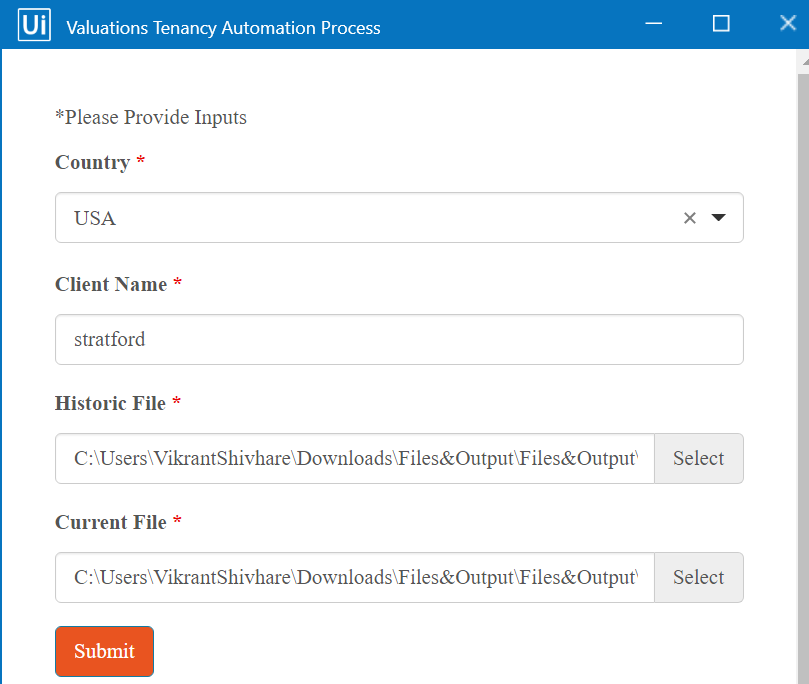
12) Once execution is completed, the green icon on the task bar disappears and the user receives an email with the link to the output report, also user will be notified with bot completion successfully message and Output file will be opened by bot for review.
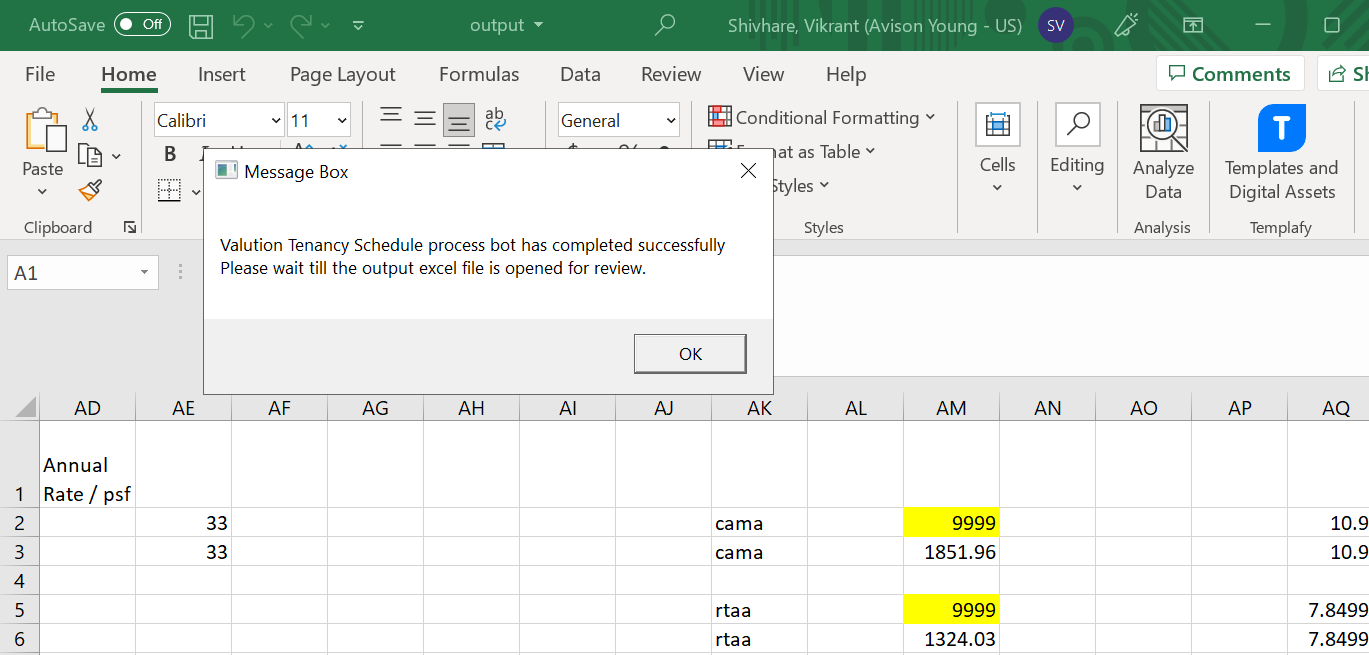
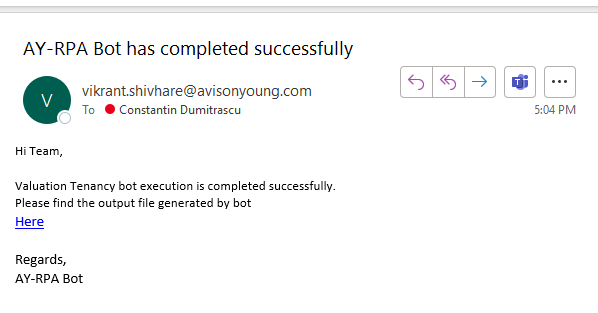
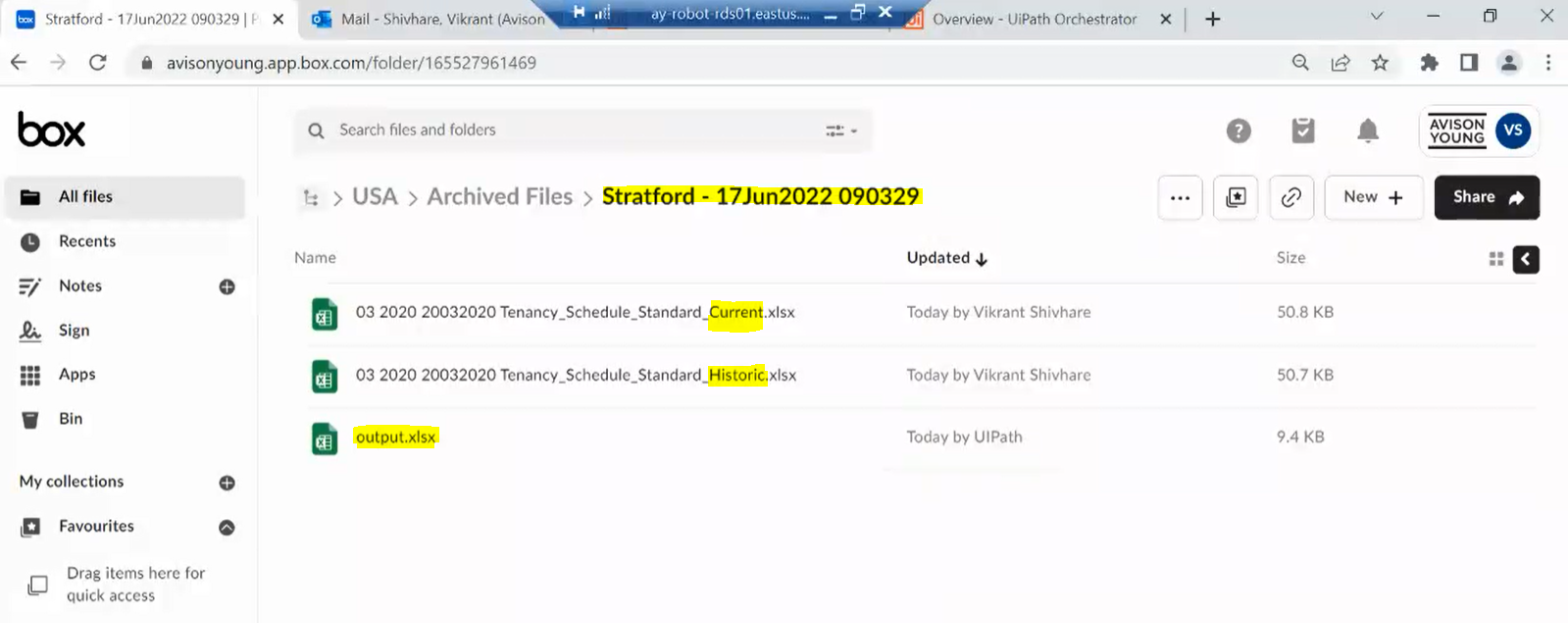
13) User clicks the link from the email and is redirected to the folder which contains both the input files (current and historic) and also the output file.
Comments
0 comments
Please sign in to leave a comment.