
Summary: ReFramework is the UiPath template, which is the backbone and structure of bot runtimes. This includes using a configuration file for constants/assets, closing and opening applications, getting transactions to process, and processing transactions. In order to further enhance the usability of ReFramework, we have our own AY version of ReFramework. Enhancements include sending failure emails, managing the status of the runtime (error vs success), taking screenshots upon erroring, and more.
Note: We have 2 Templates, one for Linear Processes (treat the whole process as one transaction), and one for Transactional Processes, which are Queue Based.
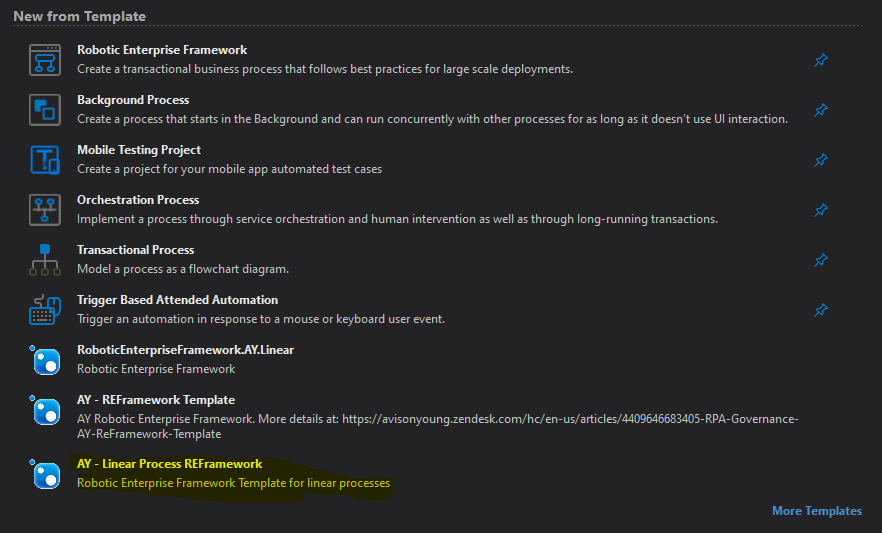
AY ReFramework Template - Linear Process
To connect to this Template, open up Studio, and it's pinned as a Template to the home page.
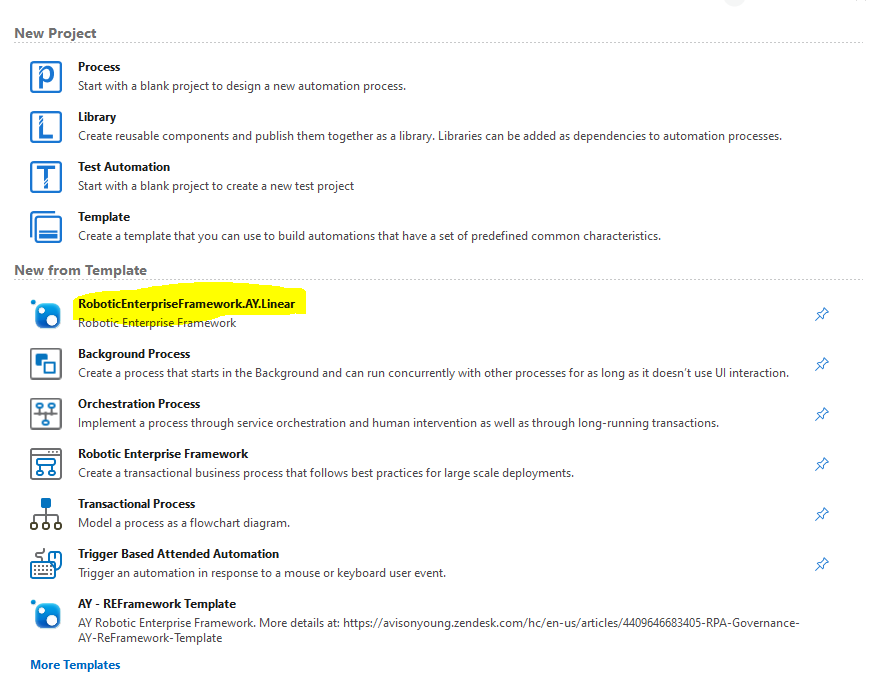
Reframework can be broken into a few different components.
1. Initialization: When a process starts, there are a few actions that we would like to see completed.
- Get Configuration Information. This includes getting constants, assets, and credentials for the process to use.
- Kill any processes that could still be open (e.g. check if chrome is closed before starting, if open, close it.)
- Open Applications and login. (e.g. open WinSCP and login, open Concur and login.)
2. Process Transaction: This includes the actual specific code for this process. For example, fetching the required file from WinSCP and loading into Concur, for the example screenshots included.
- Typically a transaction has three paths available -
- System Exception - Unanticipated Error without resolution
- Business Exception - Anticipated Error with resolution
- Success - no error
Note: You can see that "Get Transactions" section is gone when compared to out of the box ReFramework. This is because that code doesn't really do anything if it's just one transaction, and adds complication and risk points to the flow.
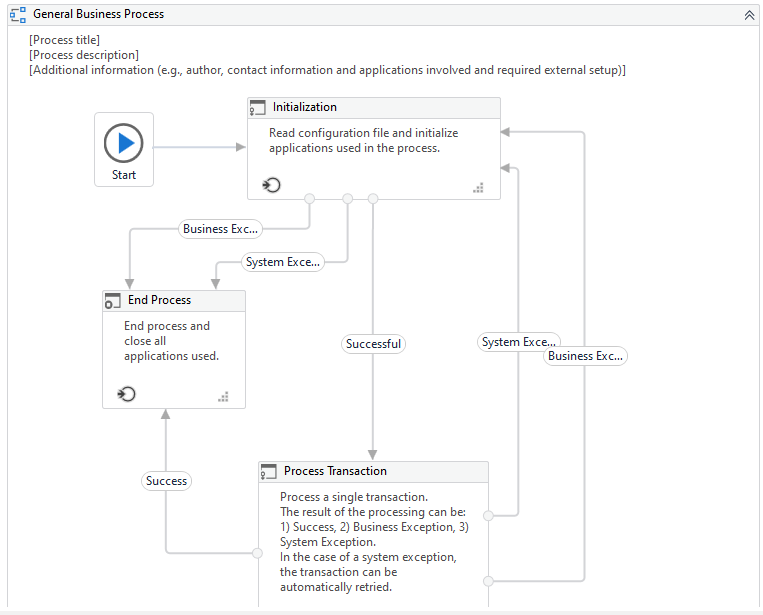
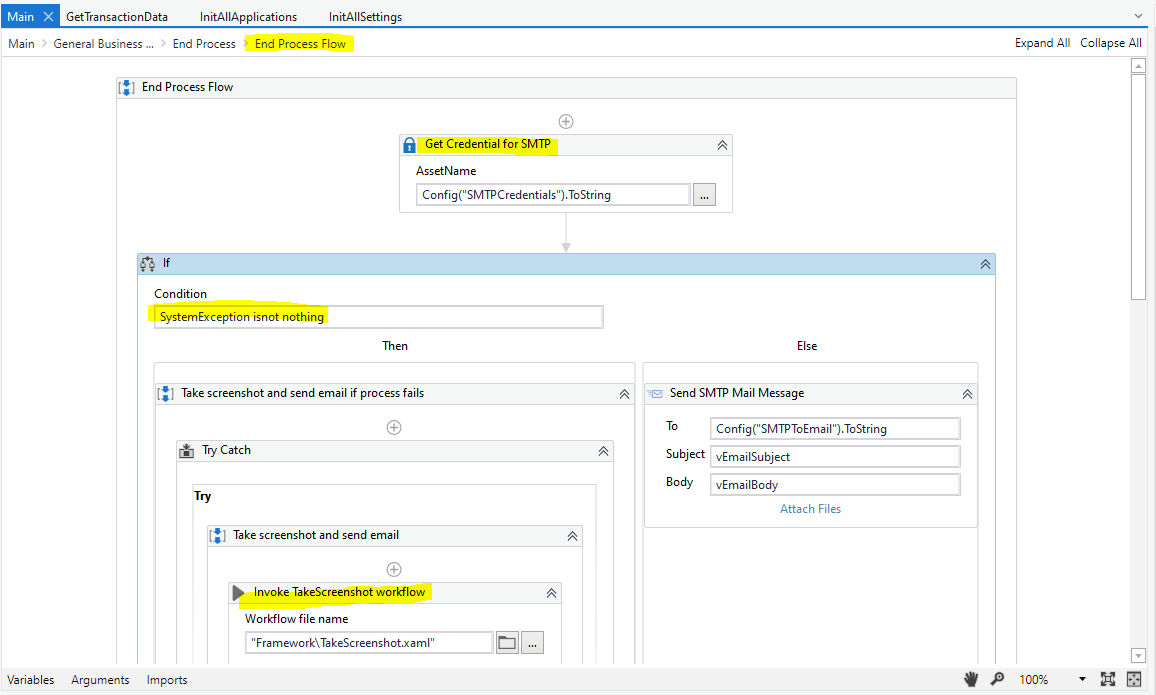
3. End Process: When a process completes, or fails, there are a few actions that we would like to see completed.
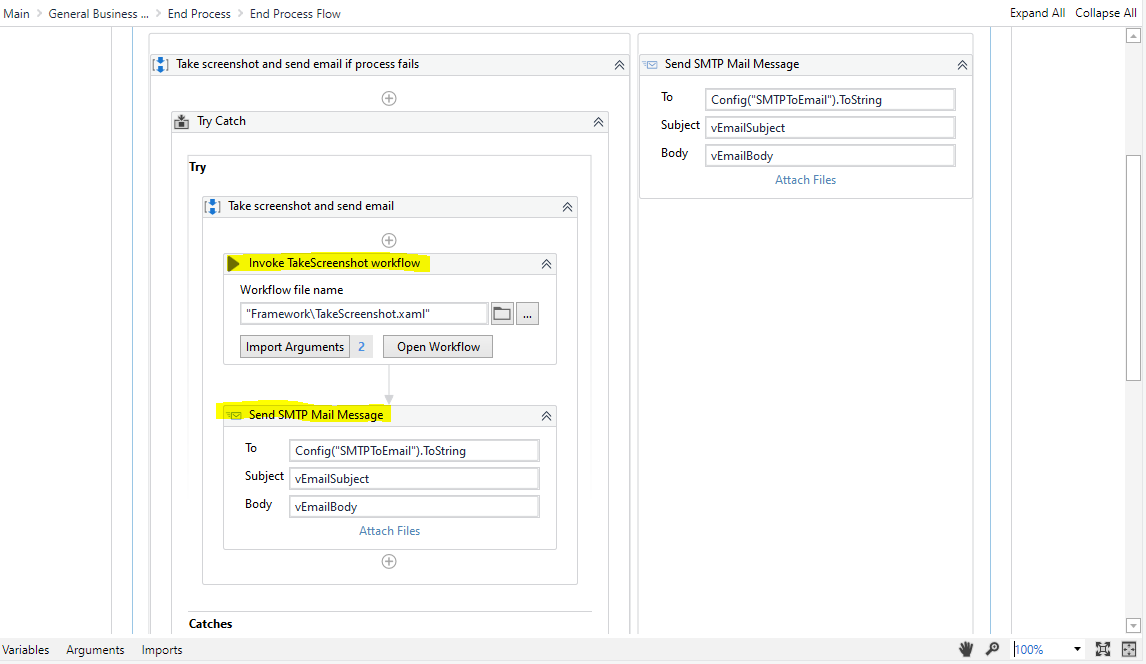
- Taking a screenshot
- This is captured below as "Invoke Take Screenshot Flow". A screenshot is taken of the window and stored on the bot machine. This is then attached to the send SMTP mail command, in the event a screenshot is taken.
- Alerting those who need to know (Developers/Process Owners)
- This requires sending an email, which is done with the "send SMTP" command. Credentials need to be fetched to send the mail, highlighted "Get Credentials". Sending the email is shown below as "Send SMTP Mail Message". This command exists twice, once if a screenshot is taken (Failure), because attachment is included, and once if screenshot is not taken (Success).
- Setting the status of the execution (to show if it successfully completed or not).
- This is shown at the bottom of the task, "Throw". A "Throw" is included here, because it means that the bot will "error", which will show as a "Fault" in orchestrator. If this wasn't included, the runtime would show as successful in Orchestrator, even if there was an error that caused the work to not be completed.
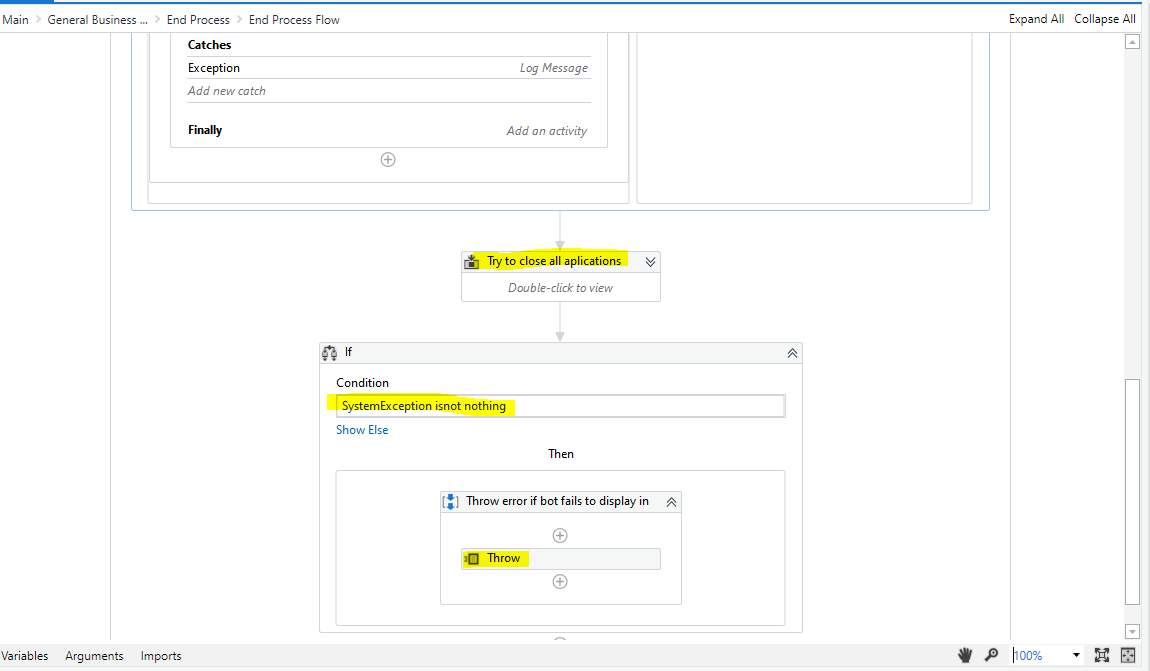
4. Error Handling - It's important to capture all the errors that can occur within the code, in order to troubleshoot effectively, and communicate any issues to process owners/developers for resolution. Additionally, errors must be logged appropriately to assist with reporting and fixing.
These errors can be broken up into two main groups.
Business Rule Exceptions: These are exceptions which are expected and can be captured explicitly. For instance, bot failed to login to WinSCP successfully, captured by seeing a login prompt.
- Whenever you expect an error could occur, determine your success or failure criteria. (e.g. after login is performed, check to see if AY Logo appears (Evidence of login).
- If AY Logo doesn't appear, throw a Business Rule Exception. Once the business rule exception is thrown, the "Catch" will execute, which should tell the bot what to do if it faces the Business Rule Exception Thrown (no file exists). This is where we will define what the bot should include in the subject and body of the email which is sent to Process Owners and Developers.
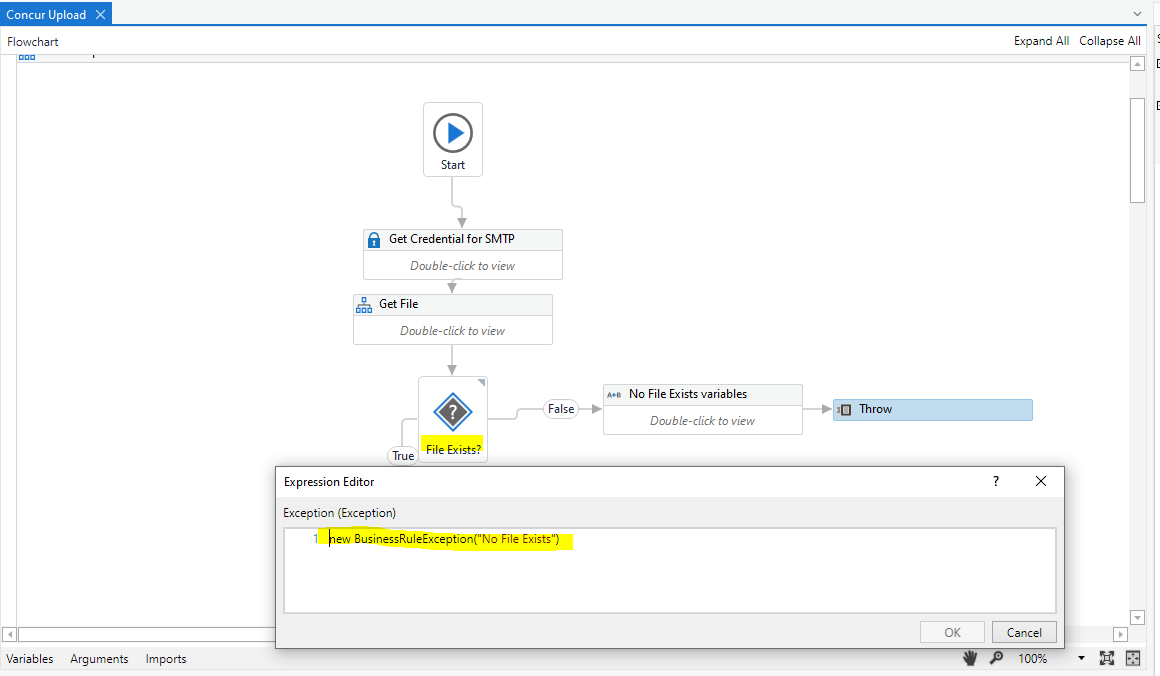
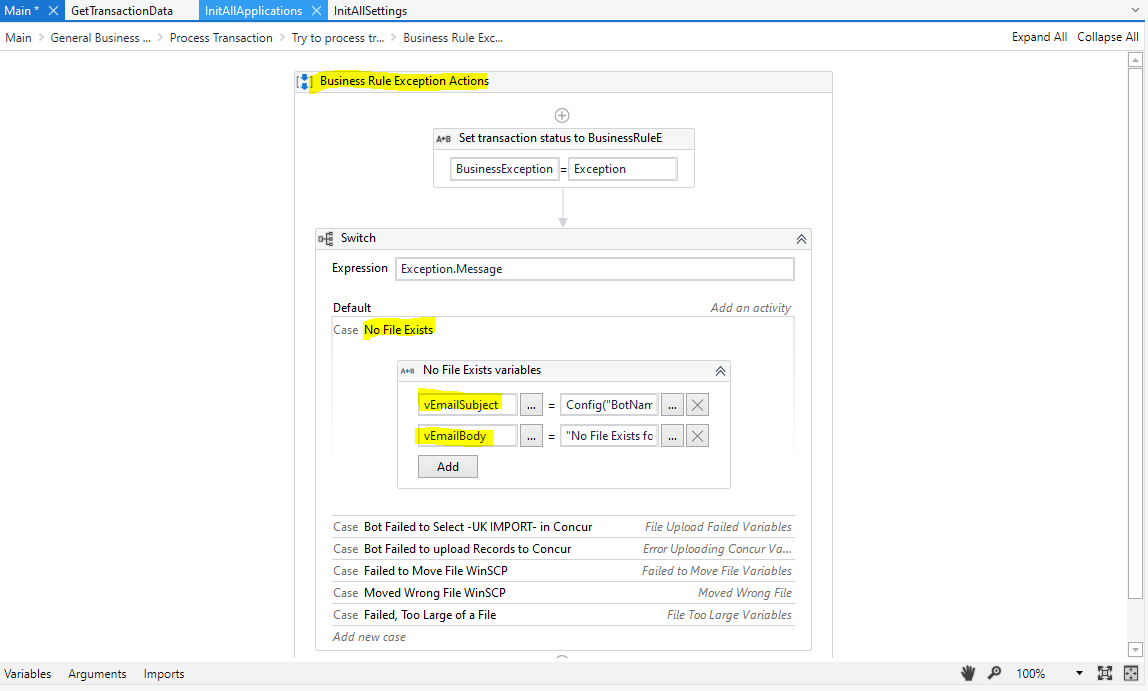
- When a Business Exception occurs, log an error message beginning with [BE]. This will allow us to sort and filter based on exception types, helping us identify the most common errors for resolution.
System Exceptions: These are exceptions which are not expected, and doesn't have any specific code to manage. In this case, the bot will handle all of these the same way. The bot will Capture the error message, and error source, to be emailed to process owners and developers. The contents of the email body and email subject are shown below.
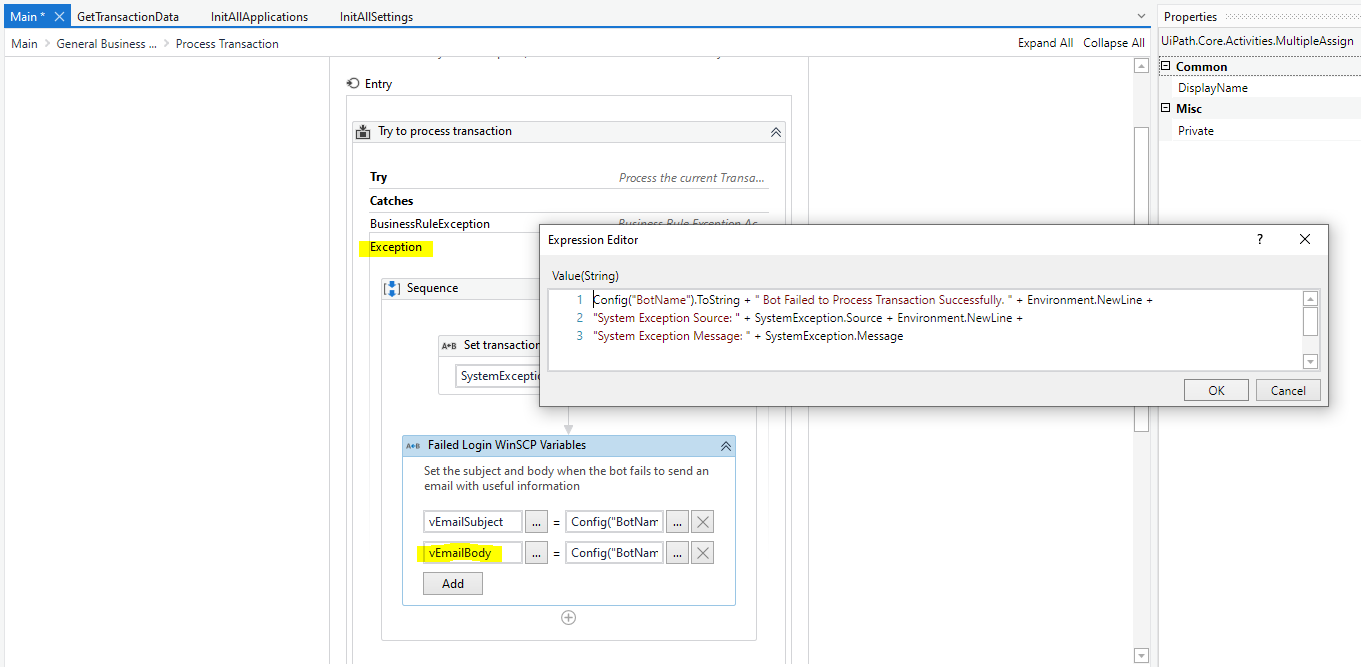
- When a System Exception occurs, include a log message starting with [SE], so we can figure out which exceptions are occurring, which are most frequent, and correct them.
AY ReFramework Template - Transactional Process
To connect to this Template, open up Studio, and it's pinned as a Template to the home page.
Reframework can be broken into a few different components.
1. Initialization: When a process starts, there are a few actions that we would like to see completed.
- Get Configuration Information. This includes getting constants, assets, and credentials for the process to use.
- Kill any processes that could still be open (e.g. check if chrome is closed before starting, if open, close it.)
- Open Applications and login. (e.g. open WinSCP and login, open Concur and login.)
- Check consecutive error count to see if the bot can continue processing (kill switch)
2. Get Transaction Data: Once the bot has initialized, it will try to get next transaction
- The bot will check if stop has been requested
- If stop wasn't requested, the bot will get next item from orchestrator queue
- If Transaction Item is nothing, the bot will go to End State. Otherwise, the bot continues to Process Transaction State
2. Process Transaction: This includes the actual specific code for this process. For example, fetching the required file from WinSCP and loading into Concur, for the example screenshots included.
- Typically a transaction has three paths available -
- System Exception - Unanticipated Error without resolution
- Business Exception - Anticipated Error with resolution
- Success - no error
- After processing item, the bot will try to update transaction status and continue to next time (Get Transaction Data)
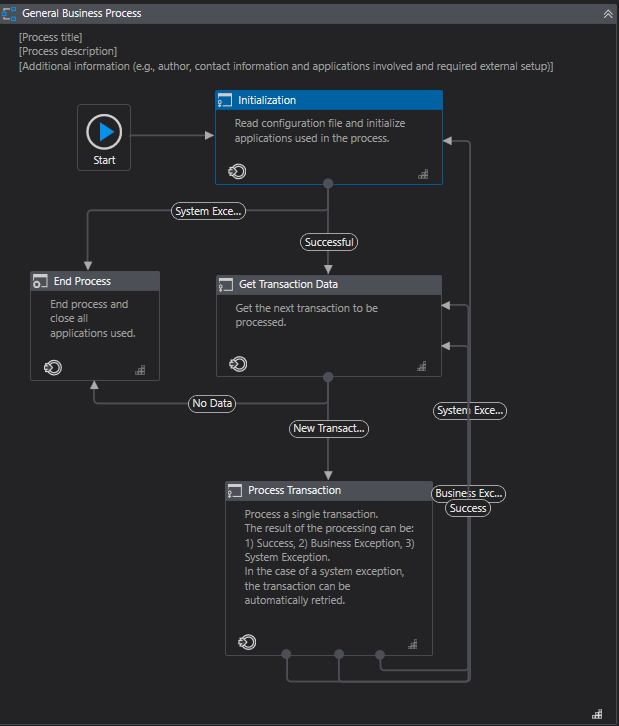
3. End Process: When a process completes, or fails, there are a few actions that we would like to see completed.
- Taking a screenshot
- This is captured below as "Invoke Take Screenshot Flow". A screenshot is taken of the window and stored on the bot machine. This is then attached to the send SMTP mail command, in the event a screenshot is taken.
- Alerting those who need to know (Developers/Process Owners)
- This requires sending an email, which is done with the "send SMTP" command. Credentials need to be fetched to send the mail, highlighted "Get Credentials". Sending the email is shown below as "Send SMTP Mail Message". This command exists twice, once if a screenshot is taken (Failure), because attachment is included, and once if screenshot is not taken (Success).
- Setting the status of the execution (to show if it successfully completed or not).
- This is shown at the bottom of the task, "Throw". A "Throw" is included here, because it means that the bot will "error", which will show as a "Fault" in orchestrator. If this wasn't included, the runtime would show as successful in Orchestrator, even if there was an error that caused the work to not be completed.
4. Error Handling - It's important to capture all the errors that can occur within the code, in order to troubleshoot effectively, and communicate any issues to process owners/developers for resolution. Additionally, errors must be logged appropriately to assist with reporting and fixing.
These errors can be broken up into two main groups.
Business Rule Exceptions: These are exceptions which are expected and can be captured explicitly. For instance, bot failed to login to WinSCP successfully, captured by seeing a login prompt.
- Whenever you expect an error could occur, determine your success or failure criteria. (e.g. after login is performed, check to see if AY Logo appears (Evidence of login).
- If AY Logo doesn't appear, throw a Business Rule Exception. Once the business rule exception is thrown, the "Catch" will execute, which should tell the bot what to do if it faces the Business Rule Exception Thrown (no file exists). This is where we will define what the bot should include in the subject and body of the email which is sent to Process Owners and Developers.
- When a Business Exception occurs, log an error message beginning with [BE]. This will allow us to sort and filter based on exception types, helping us identify the most common errors for resolution.
System Exceptions: These are exceptions which are not expected, and doesn't have any specific code to manage. In this case, the bot will handle all of these the same way. The bot will Capture the error message, and error source, to be emailed to process owners and developers. The contents of the email body and email subject are shown below.
- When a System Exception occurs, include a log message starting with [SE], so we can figure out which exceptions are occurring, which are most frequent, and correct them.
Comments
0 comments
Please sign in to leave a comment.