
Summary: UiPath will only store queue data for so long until it's purged. This is an issue because we want to keep queue data for a number of reasons, including reporting and auditing. In order to retain queue data for longer than UiPath provides out of the box (standard 30 days, can be edited to 180 days), the data has to be backed up into a storage bucket.
Modifying Retention Time in UiPath:
- Open Orchestrator
- Select the folder where the queue is located
- Open up the list of queues
- Select the more actions for the particular queue and click on Edit
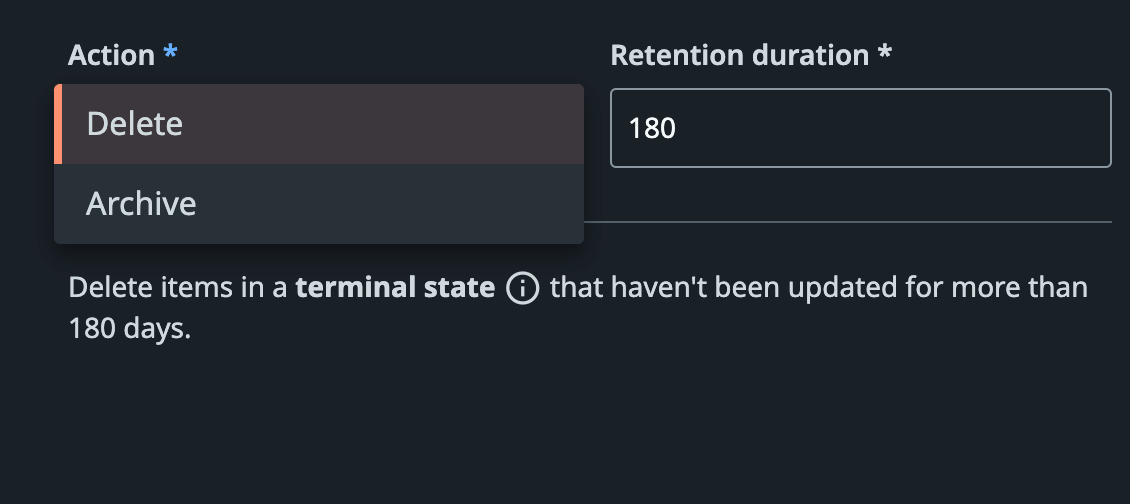
- Scroll down towards the Action section and select Archive from the dropdown, set to 180 days, and "Update".
Backing up Queue Item Data in Storage Bucket - In order to setup a backup for the queue data, a storage bucket will need to be configured. To setup a storage bucket, go to "Storage Bucket" tab. We use Azure for our Storage Buckets, so you may also need to download Microsoft Azure Storage Explorer to best navigate Azure Storage.
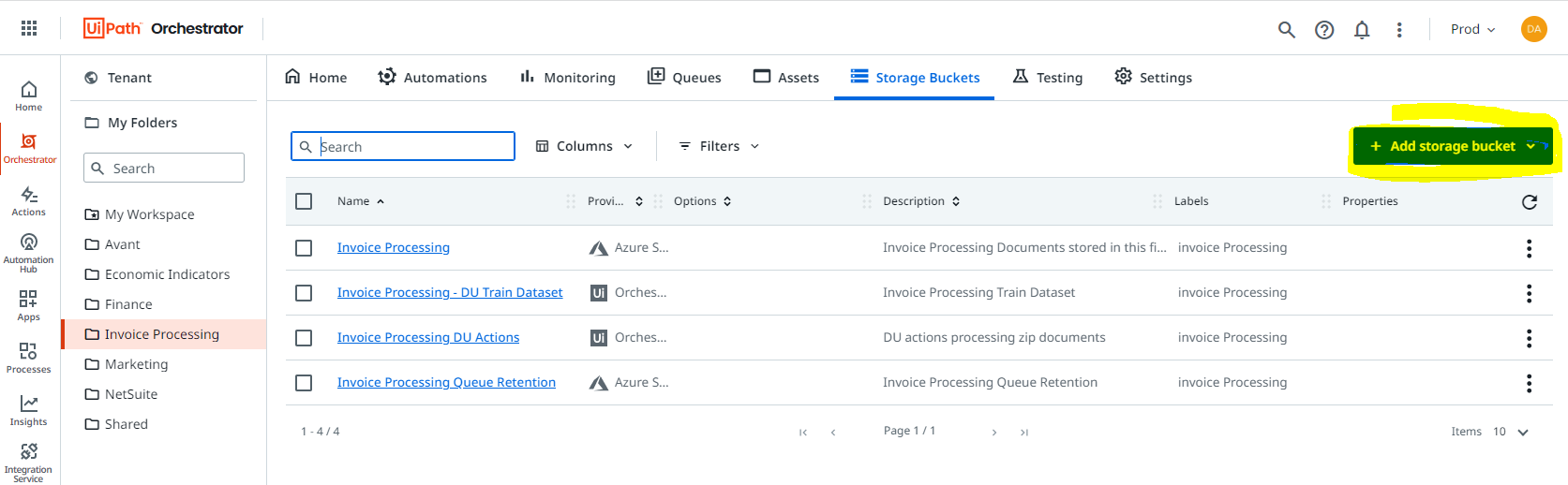
1. Go to Storage Buckets and "Add storage bucket"
2. Select "Azure Storage Bucket"
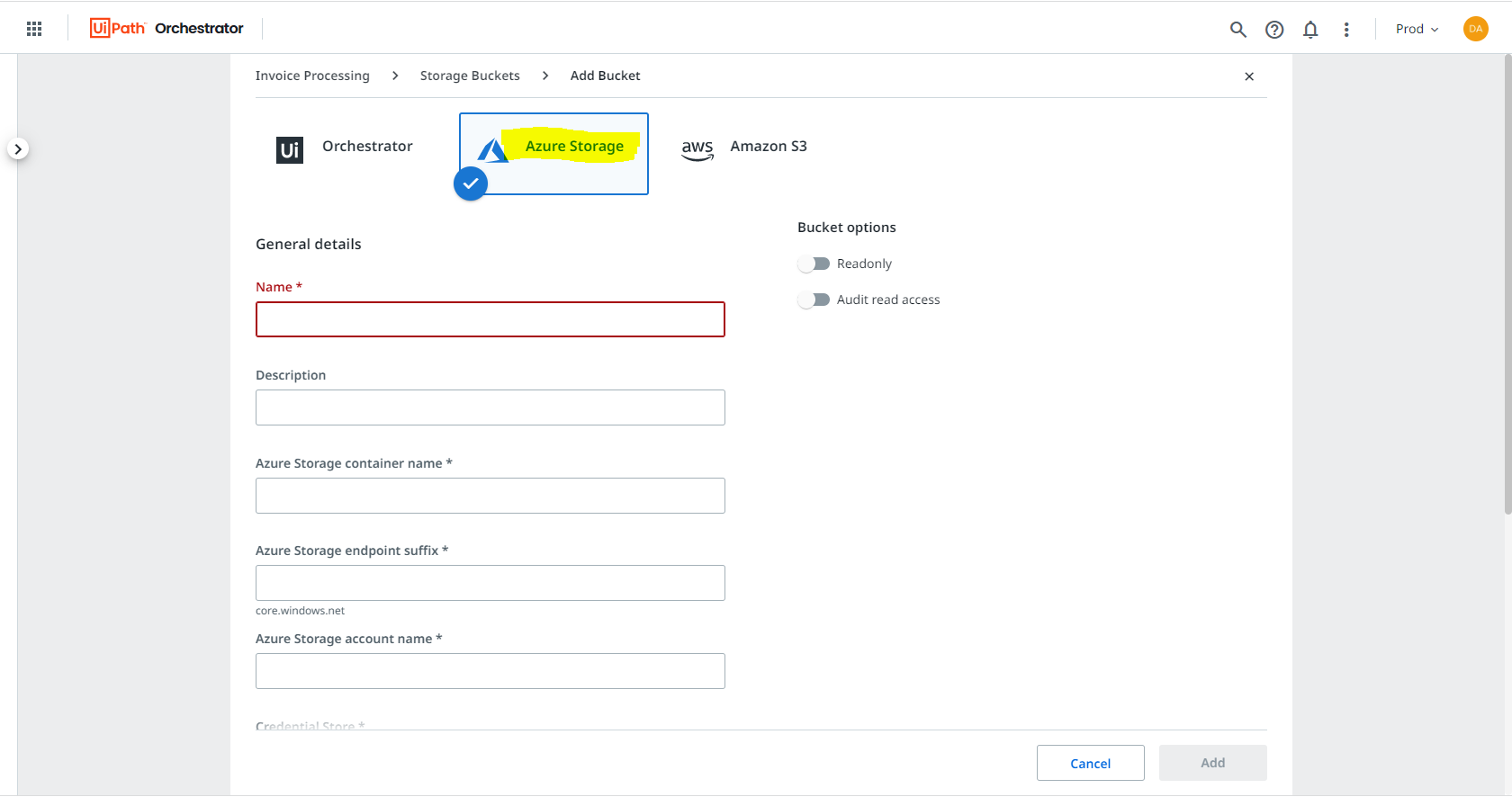
3. Fill in the details for each field required.
Name: Name you select for Storage Bucket in UiPath
Description: Function of Storage Bucket
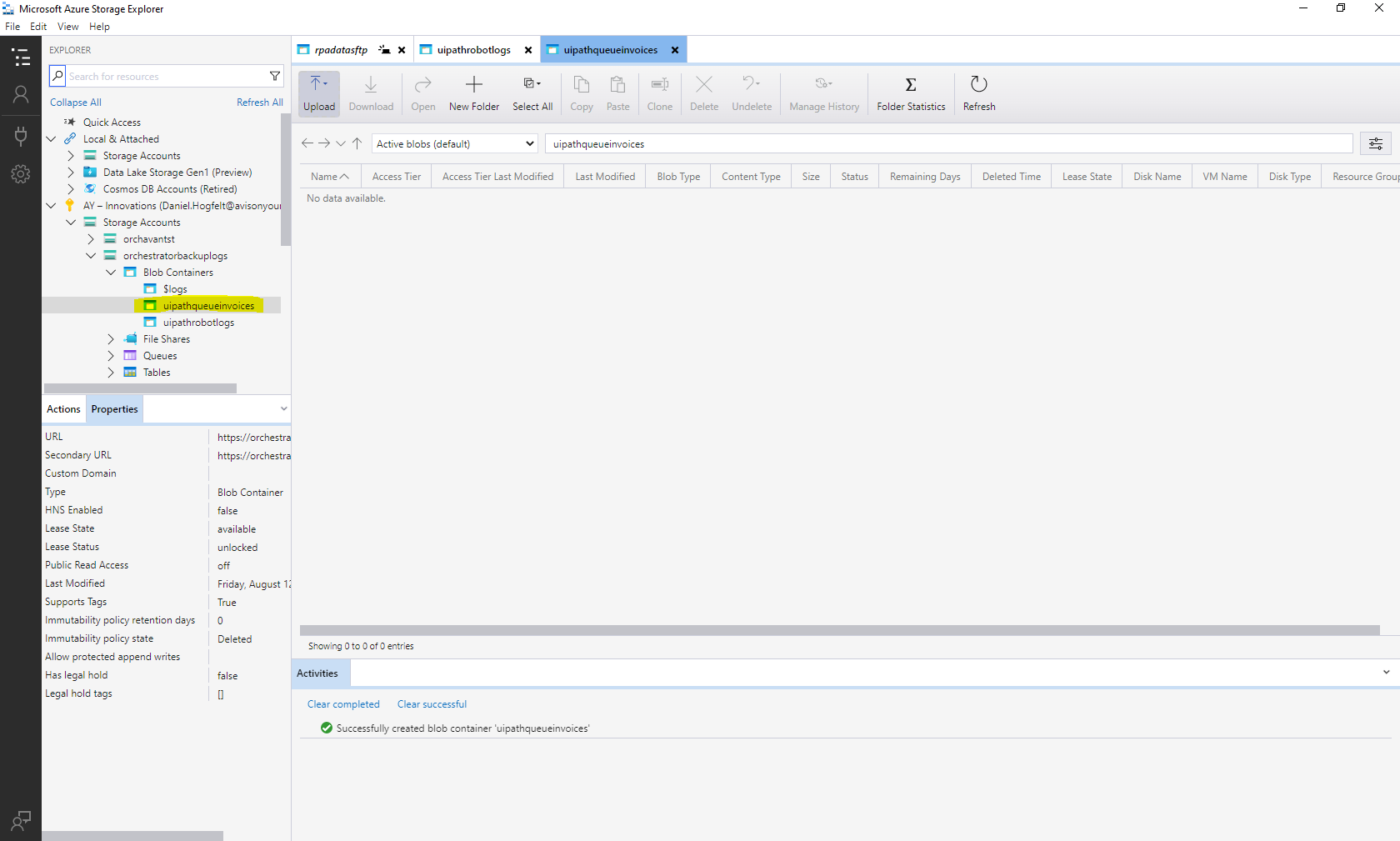
Azure Storage Container Name: Name of Container in Azure Storage Explorer - you may need to create a new container for your use-case.
Azure Storage Endpoint: core.windows.net
Azure Storage Account Name: This is the "Parent" Folder of the container location you are selecting. highlighted yellow below for this scenario.
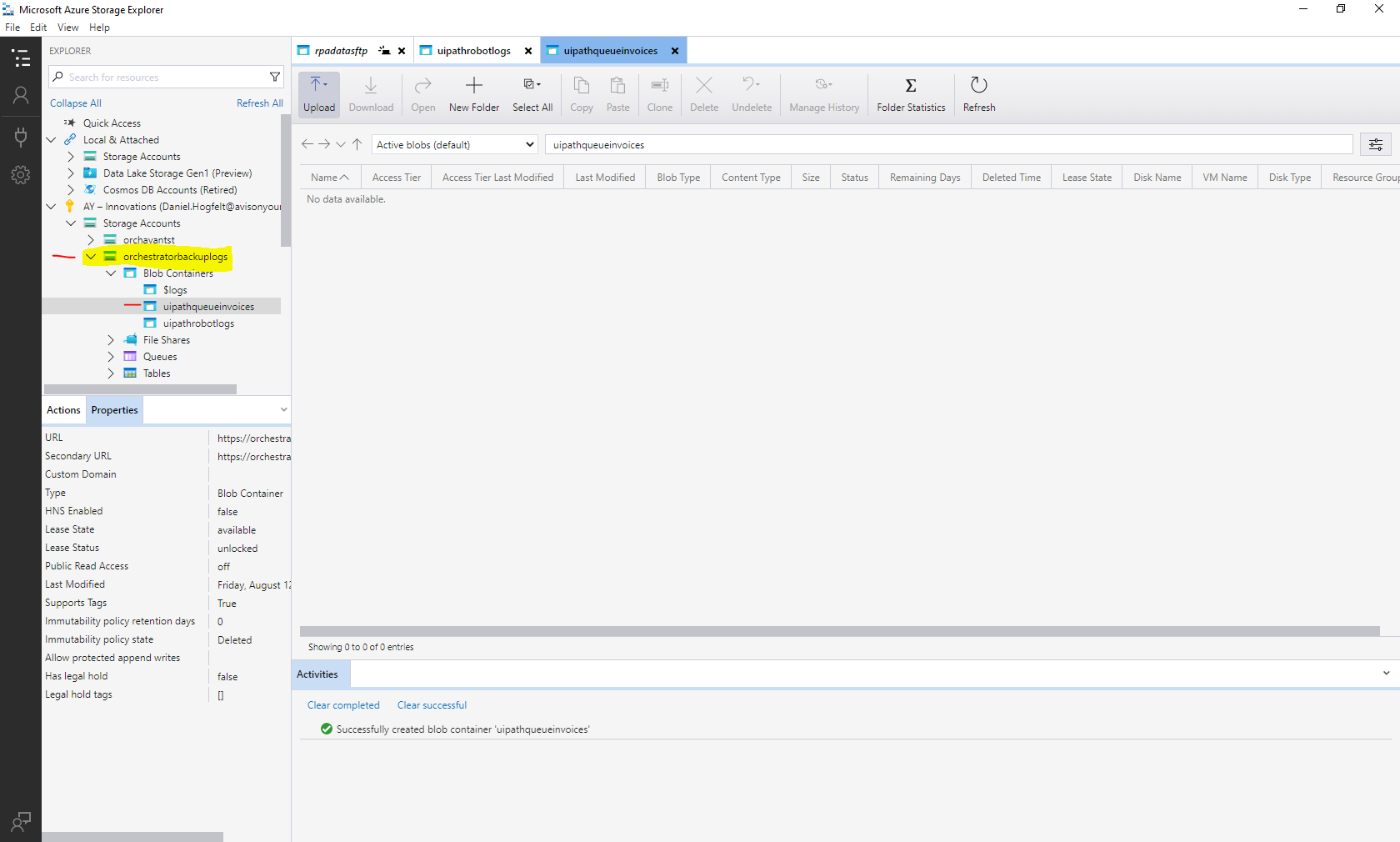
Azure Storage access Password: This should be the secondary key on the "Parent" folder. Click "Show" and copy paste into UiPath to store.
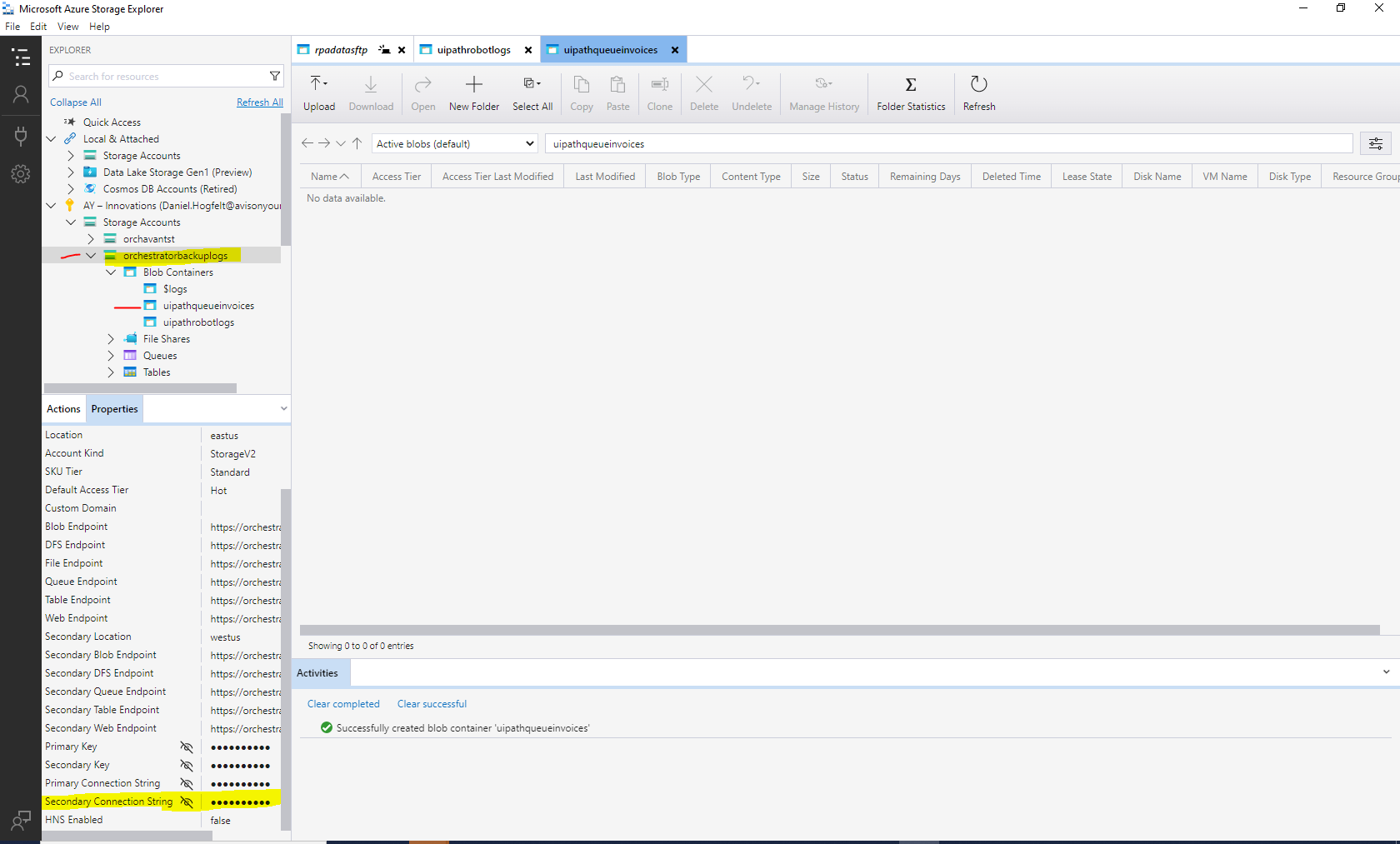
Add the Storage Bucket in UiPath once all the information is updated.
Now that the Storage Bucket exists, add the storage bucket to the relevant queue in UiPath by navigating to the queue, and adding storage bucket to queue in "Edit Queue" Screen.

Click Update.
Note: Please confirm your storage bucket is working by testing the storage bucket in Studio by trying to add something to it and see if the item appears there or not.
Comments
0 comments
Please sign in to leave a comment.