
To submit an RPA request, please follow the steps below.
1. Evaluate your request
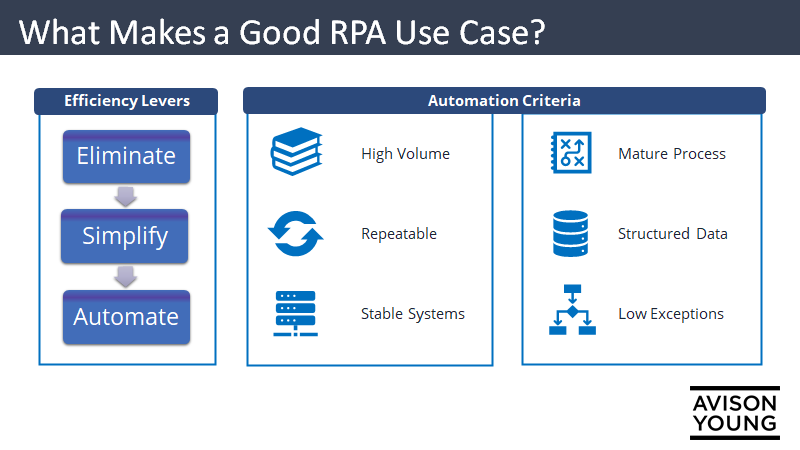
Efficiency Levers:
A good use-case for automation has already been, or should be, evaluated to:
- Eliminate unnecessary steps/handoffs in the process
- Simplify work as much as possible
Once the work has been eliminated/simplified as much as possible, automation becomes feasible for any remaining work.
Automation Criteria
A good use case for automation should check all (or most) of the below items.
- High Volume
- Repeatable
- Stable Systems
- Mature Process
- Structured Data
- Low Exceptions
2. Submit your idea VIA the UiPath Automation Hub.
Click the hyper link above and "Sign In" on the top right of the page.
If this is the first time you are submitting an idea, click "Sign Up" and enter in your information to create an account.
Once logged in, click "Share" on the top right, highlighted below.

Fill out the questionnaire and submit for review.
3. Wait for your idea to be reviewed.
You will receive an email notification once your idea has been reviewed, and has been either approved as a valid use-case, or if more information is required.
You can also reach out to daniel.hogfelt@avisonyoung.com to follow up or ask questions
4. Capture your Task
Now that your submission has been reviewed at a high level, it's time to provide more detail around the process. UiPath provides a complimentary recorder to capture information around your process as you execute it on your PC.
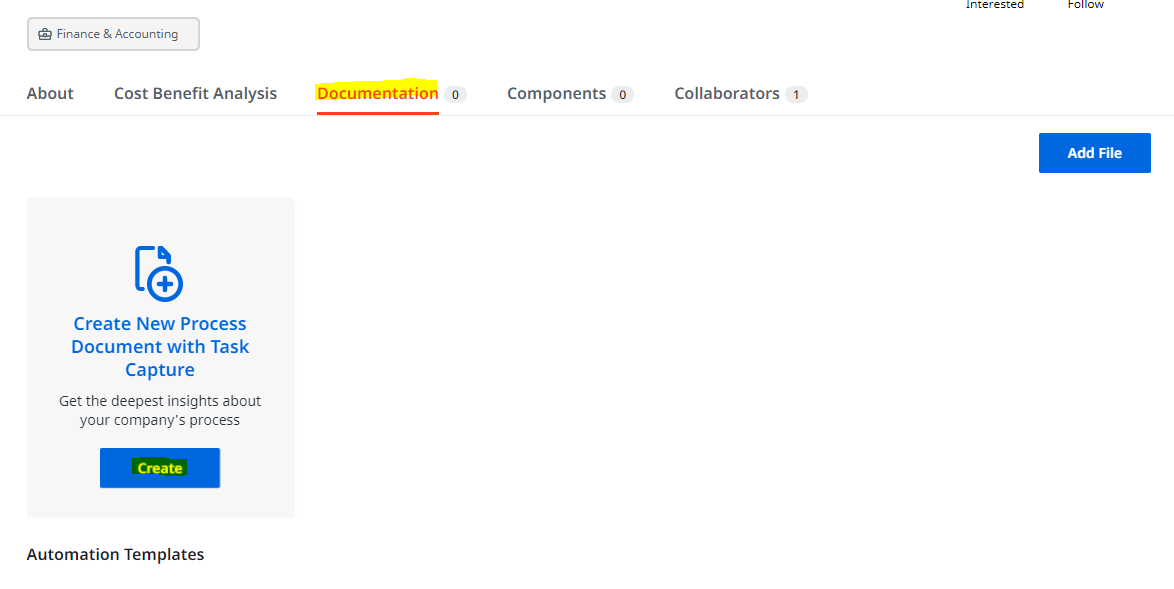
Navigate to your use-case in the Automation Hub and select the "Documentation" tab. Then select "Create" with Task Capture. This should download Task Capture directly from UiPath.
Note: If this is your first time capturing a task, the below screenshot will instead say "Download Task Capture". After Download, select "Community Edition" when asked for a license key.
Once you have opened Task Capture, select "Capture Process"
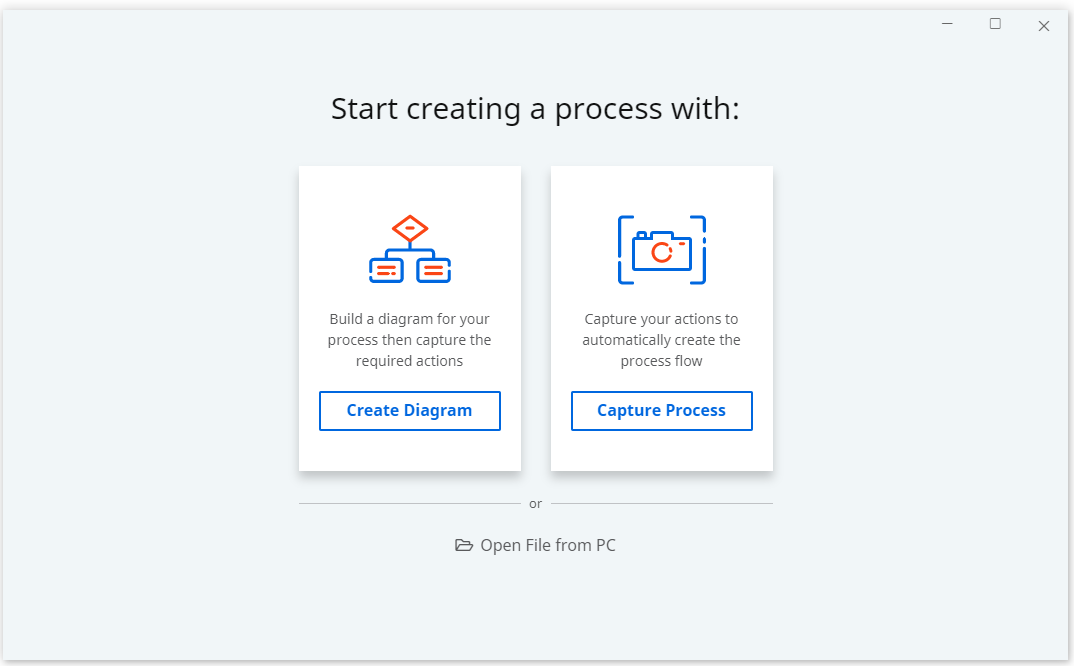
Select "Capture" and begin recording your process
Once you are done recording your process, select "Stop"
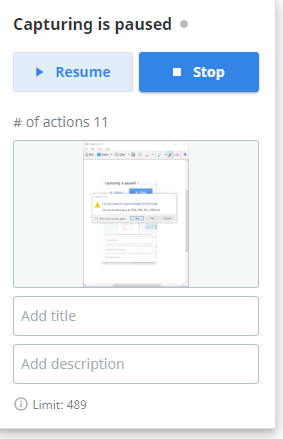
Select "Automation Hub" to Export
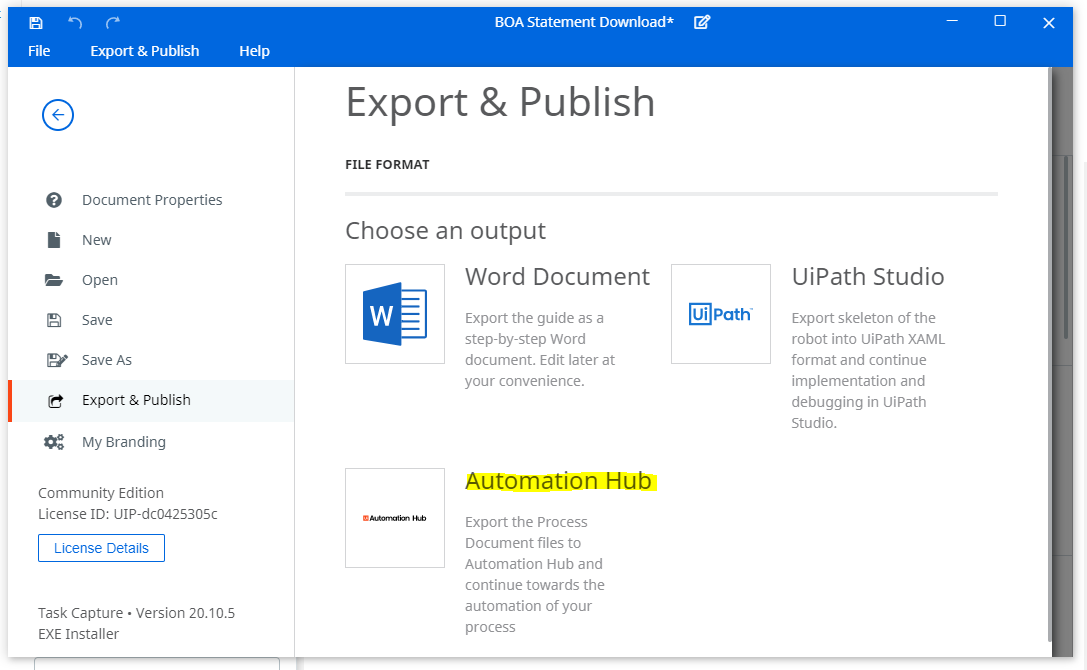
This will upload your recording directly to Automation Hub where it can be leveraged for beginning the creation of the code, as well as generate a requirements document that captures information around your process for all team members to utilize.
Comments
0 comments
Please sign in to leave a comment.