
Summary: For projects that require Information Extraction from Documents, UiPath provides "AI Center", which enables us to tag the information that should be extracted from documents.
Note: UiPath also has it's own article for tagging documents that can be found here.
1. To access AI Center, login to UiPath.
Click on "AI Center" on the left hand side.
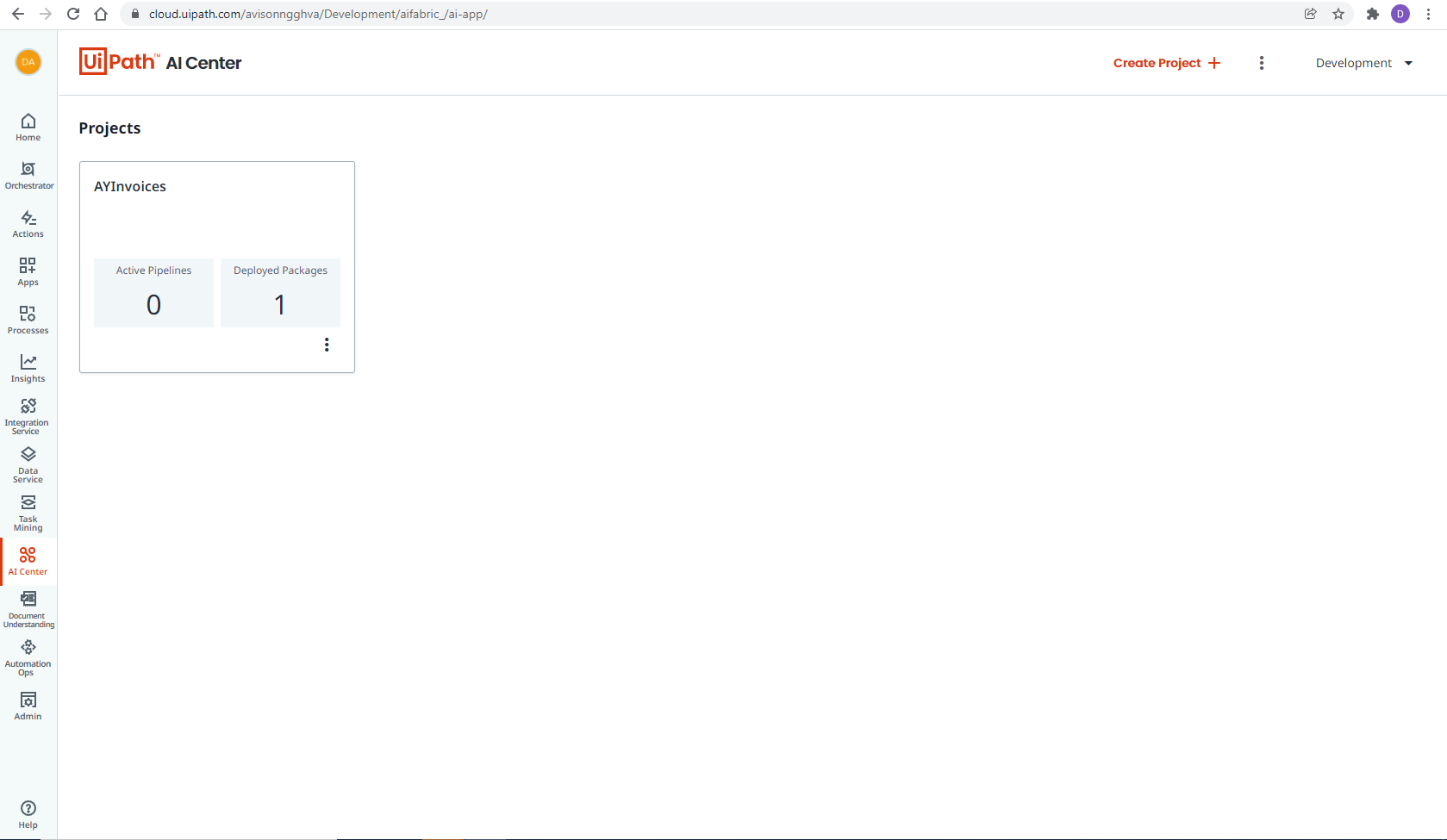
2. Select the Project you want to Interact with.
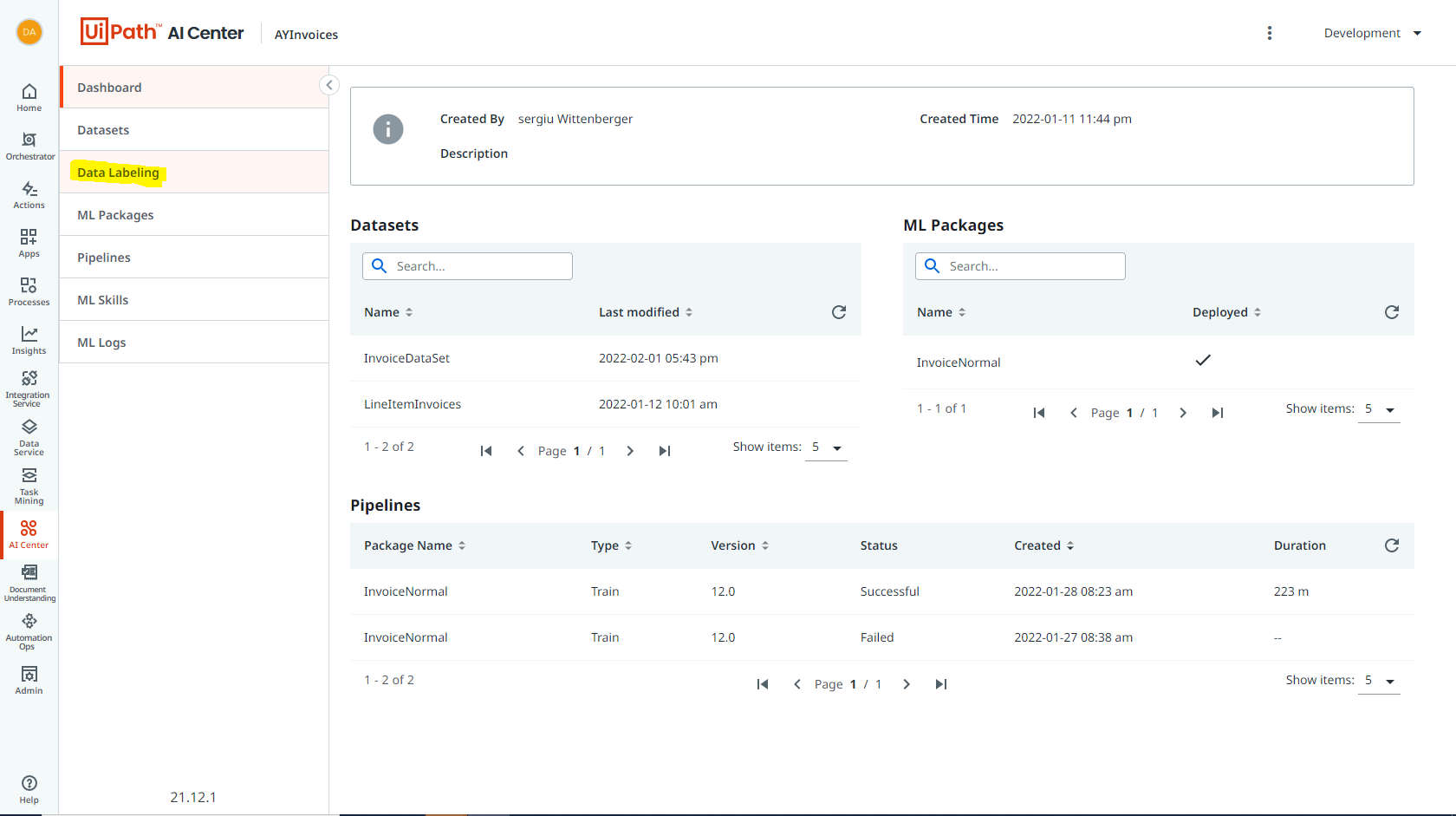
3. Select "Data Labeling". This is the interface to see what fields have been tagged, and make any adjustments as needed.
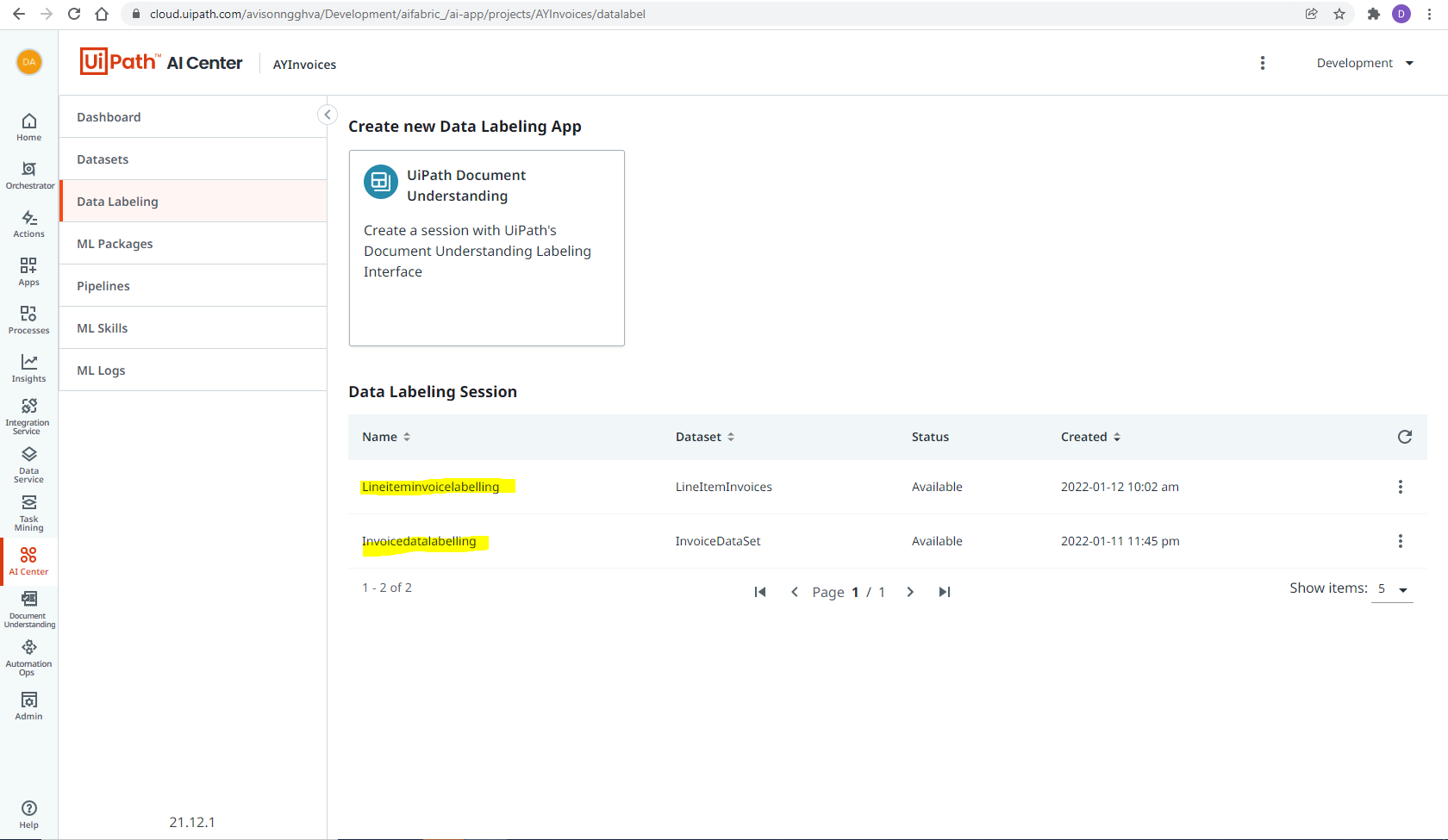
4. Select the "Model" that you want to interact with. In the below screenshot, we have two models. One for singular Invoice Extraction (Invoice Data Labeling), and one for extracting multiple invoices from a single document (Line Item Invoice Labeling).
5. Navigate to the invoice you would like to review by using the highlighted field below.
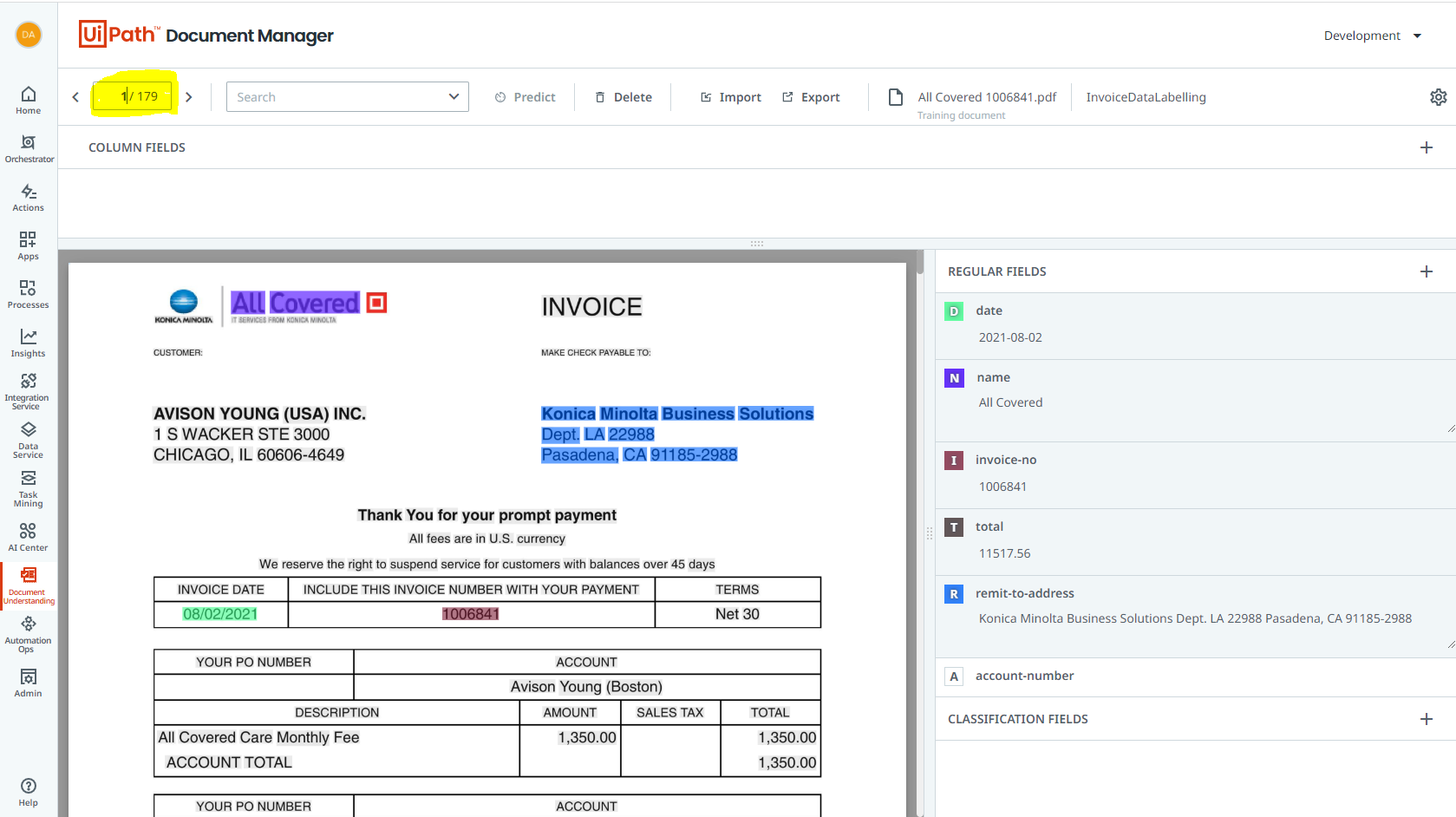
6. To Change the selection of a field, highlight the incorrect selection and press "Delete" or "Backspace".
To Add/Update the selection of a field, highlight the selection and process the "Hotkey" on the right. Each Field will have it's own hotkey.
7. Once the fields are selected correctly, they are autosaved. There is no save button.
Comments
0 comments
Please sign in to leave a comment.