
Summary: When a machine learning model is put in place, improvements can be made to the model's accuracy over time. As more validation tasks are completed, and users are tagging the correct fields on the documents, that data can be included in the machine learning model. To do this, please follow the below steps.
- Login to AI Centre
- Navigate to Data Labeling page
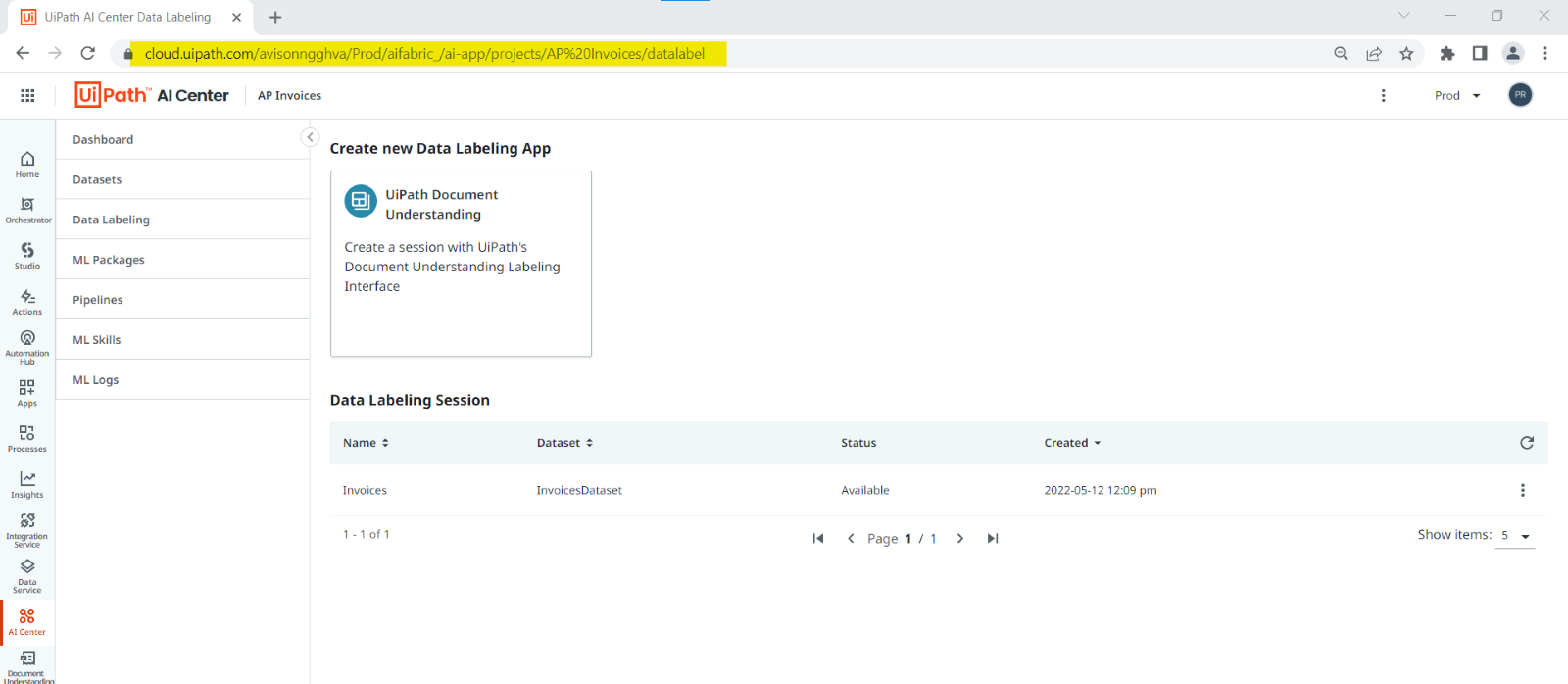
3. Access the Invoices datalabelling App
4. Click Export button (ONE TIME SETUP)
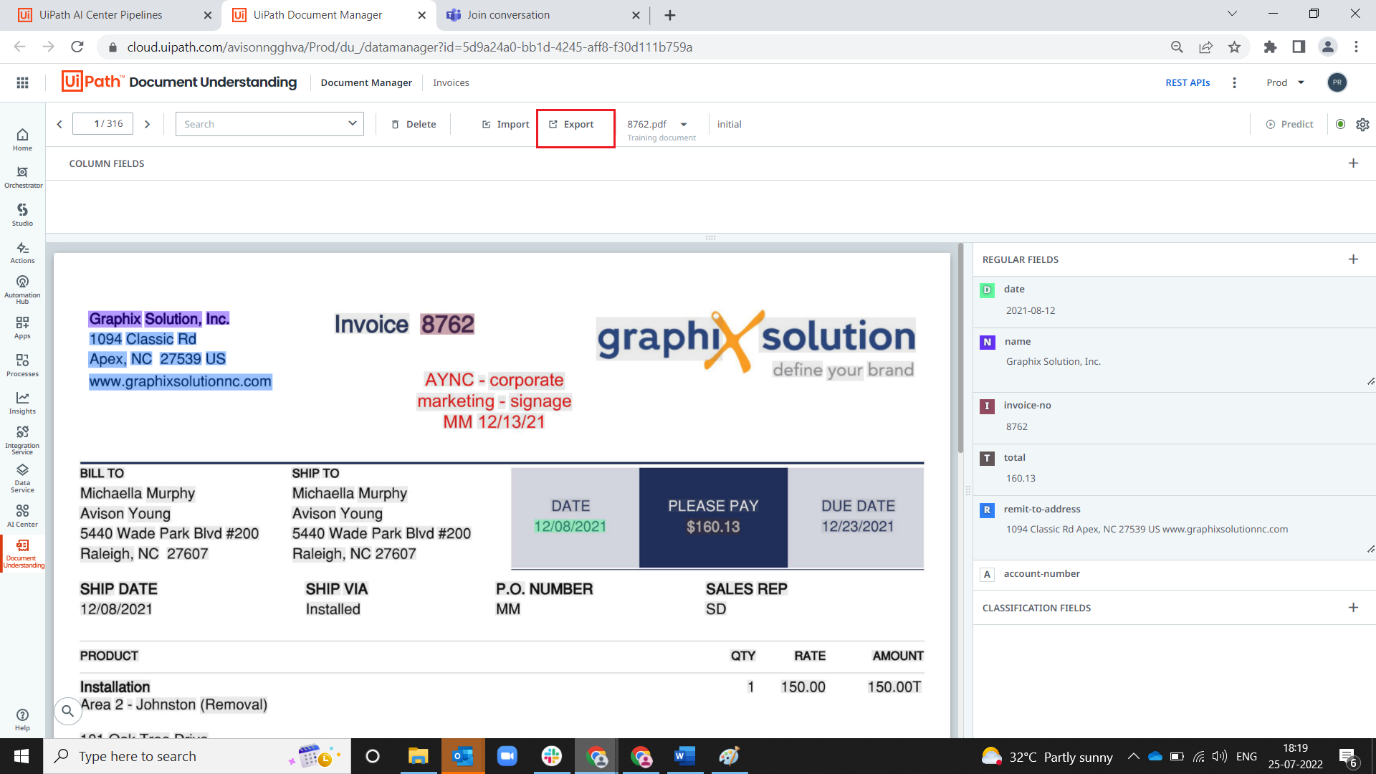
5. on the Export wizard, select scheduling preview, toggle schedule, and enter start time(local time) and interval of export
Note: This will export new invoices (on a cadence) into a DataSet for ReTraining the ML Model.
Note: In logs, you can view the files stored after validating is imported into data manager.
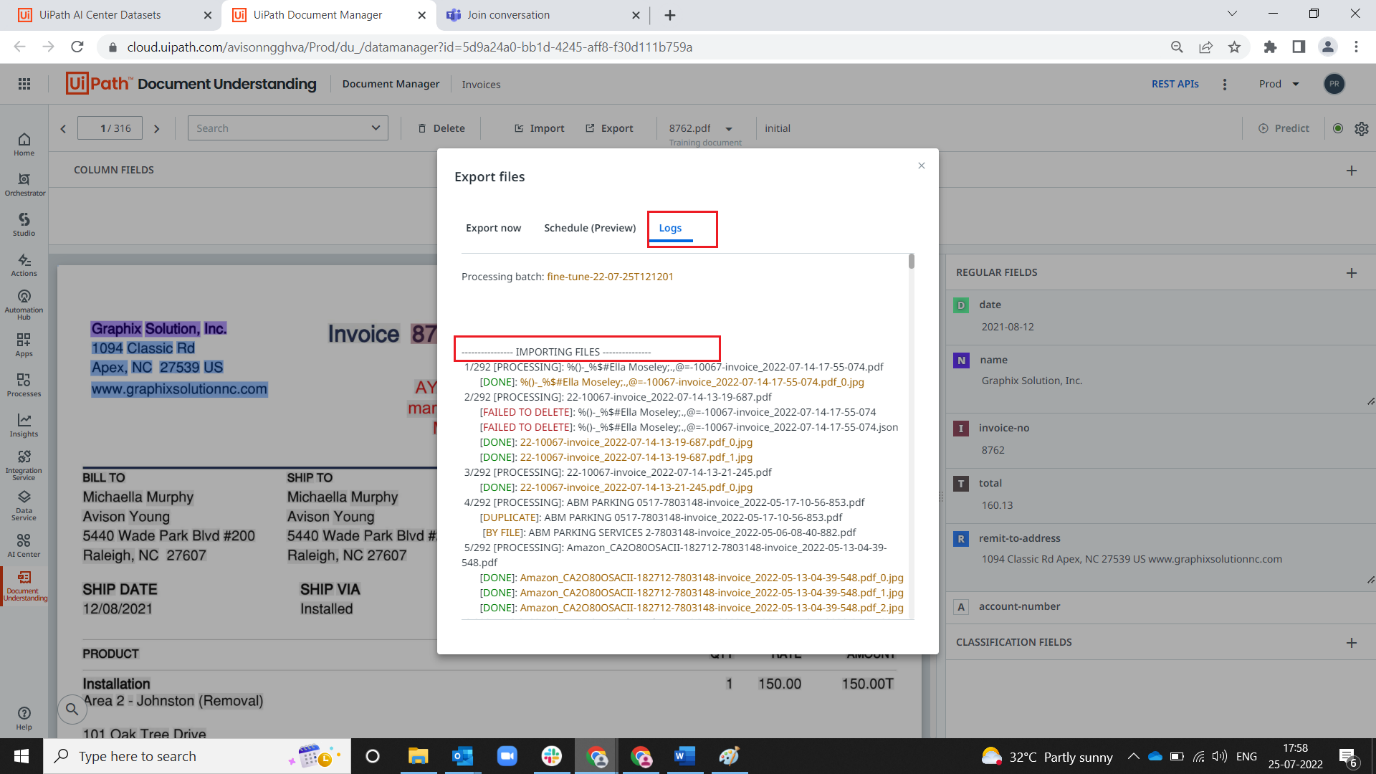
6. Once the data is imported, the files will be automatically exported to dataset with new folder it can be seen with naming convention auto-export_yy-MM-ddXXXXXX
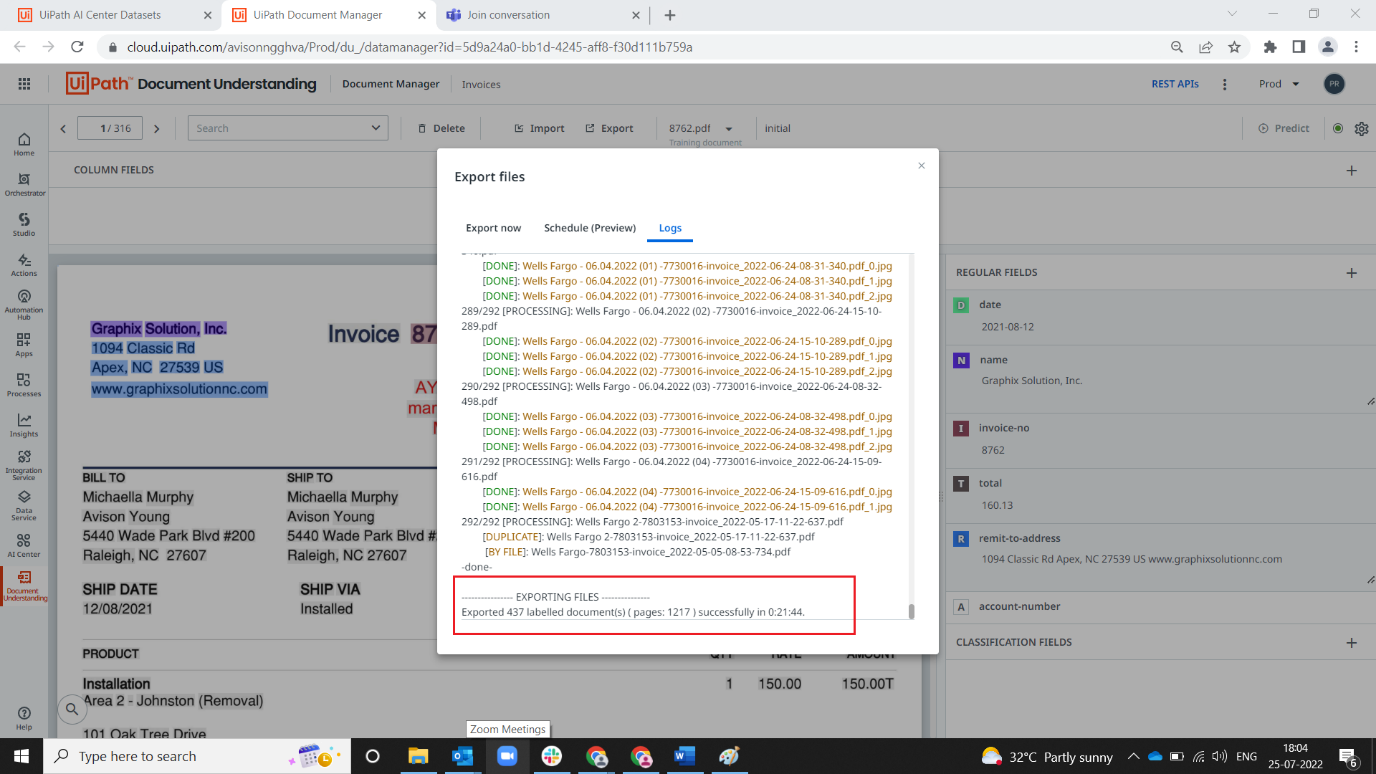
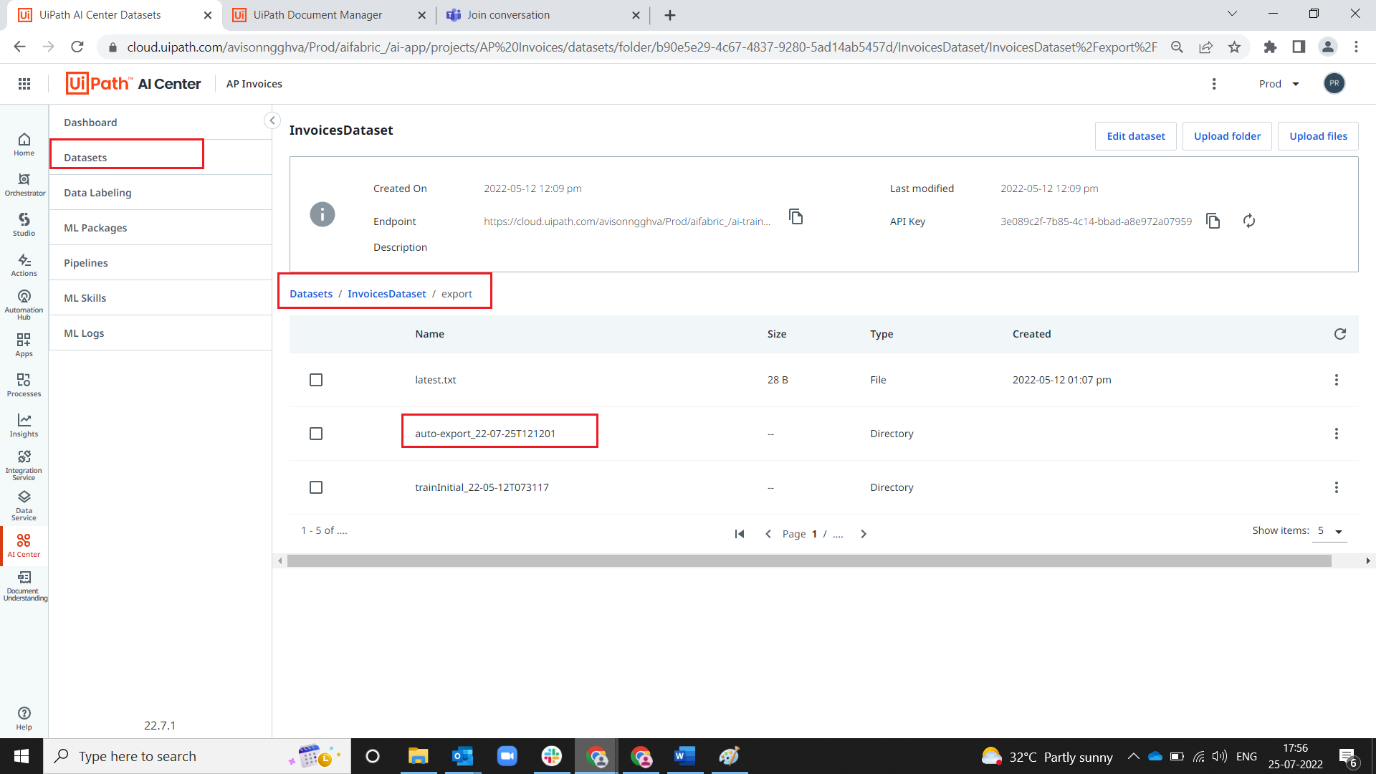
Note: Steps 4-6 are pre-configured (14 day auto export). They can be changed if required.
7. Training should only be done on BALANCED, PROPERLY LABELED data. Before running a new pipeline, the documents in datasets exported should be verified for all fields were mapped properly to correct data by data scientists. Go to data manager.
8. Select “batch:fine-tune<exported date>” in dropdown
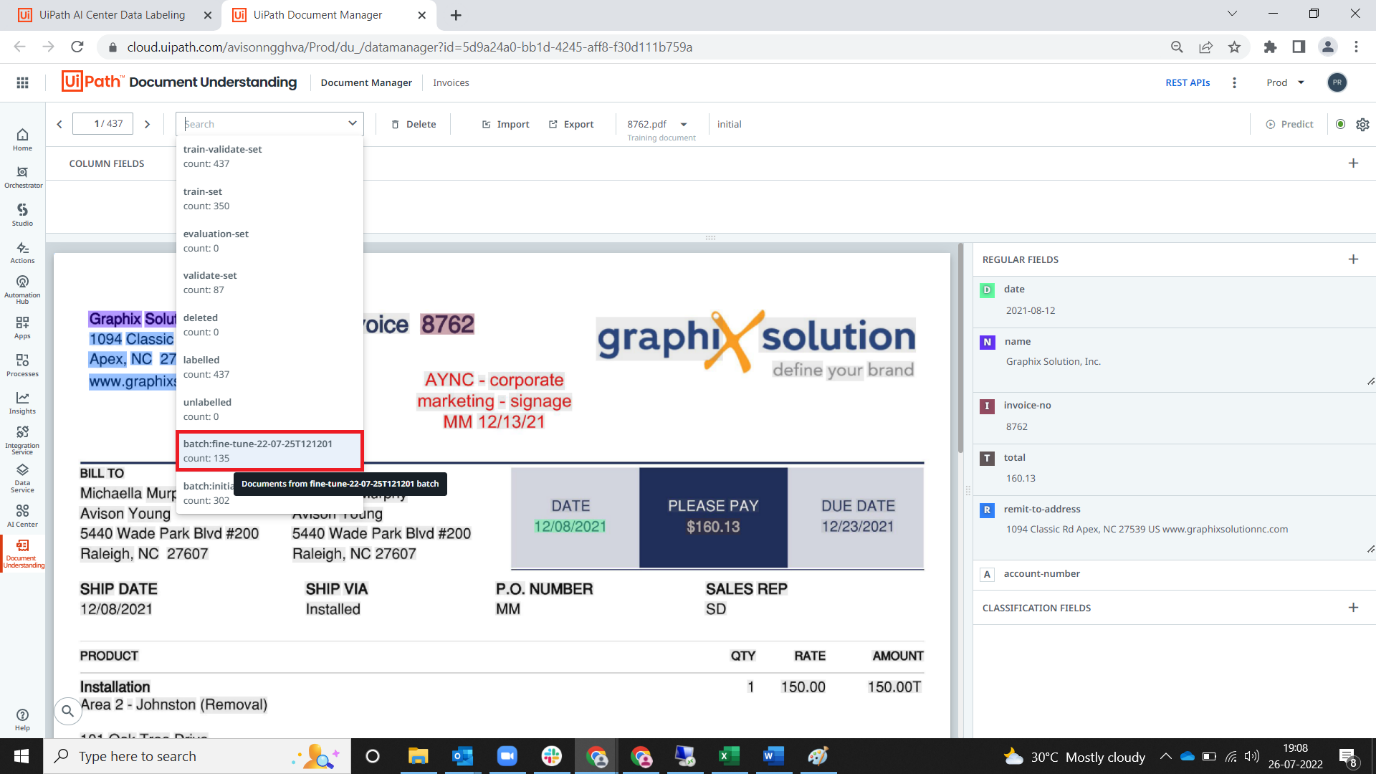
9. Check the fields mapped in each document.
10. Export the dataset to Excel so you can see how many of each vendor exist, as well as review extracted fields for accuracy.
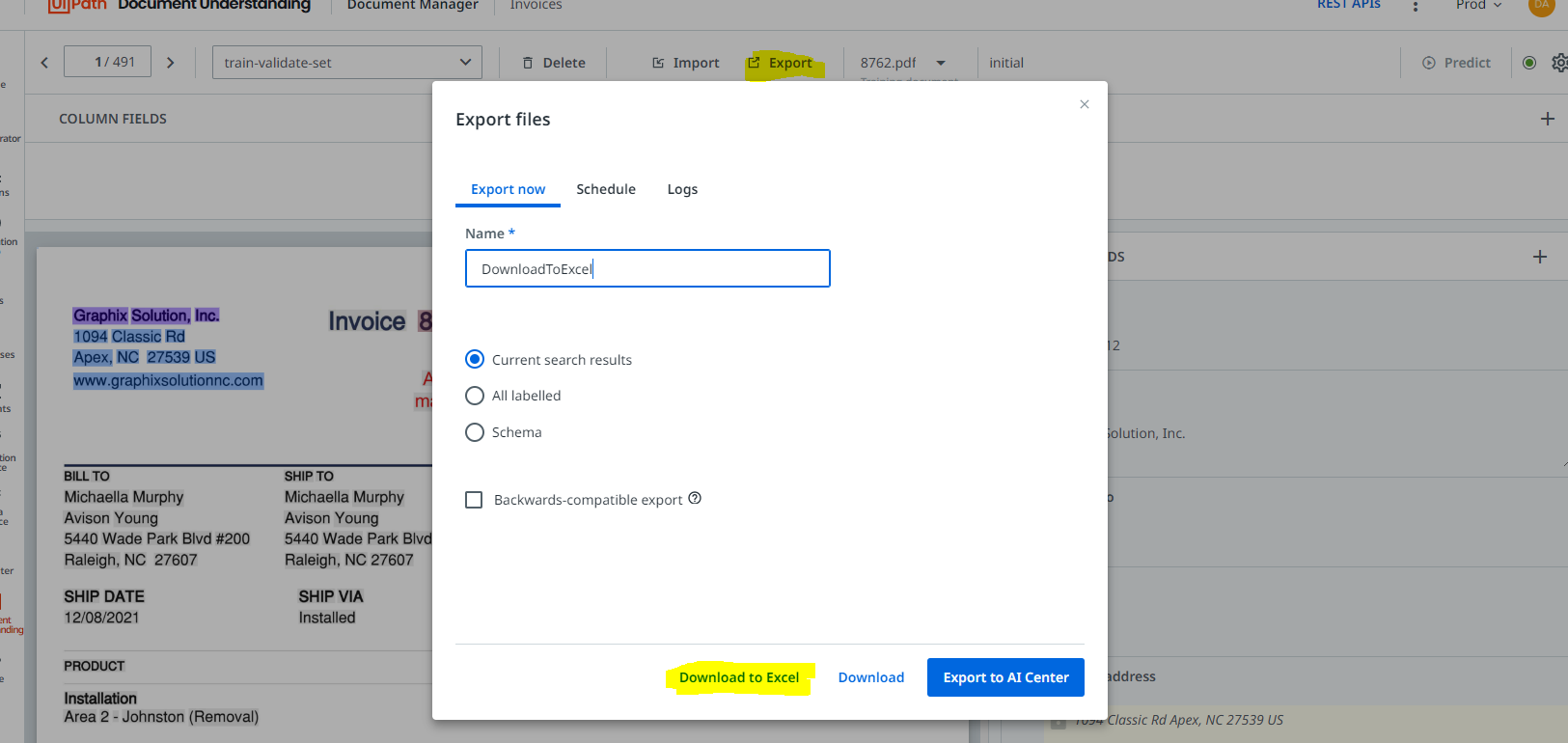
10. If this document of same vendor is comparatively more (15) than other vendors, click delete button on top ribbon. If document count among each vendor is balanced go to step #12.
Note: For best results, don't want more than 15 documents per vendor. This is because ML model will over favor that template and may degrade performance for other vendors.
Note: If there are more invoices of one vendor than others, you can delete the excess documents from the model by clicking "Delete". This will move the document to the "Delete" sub-section. Can be restored (not gone) at a later date if needed.
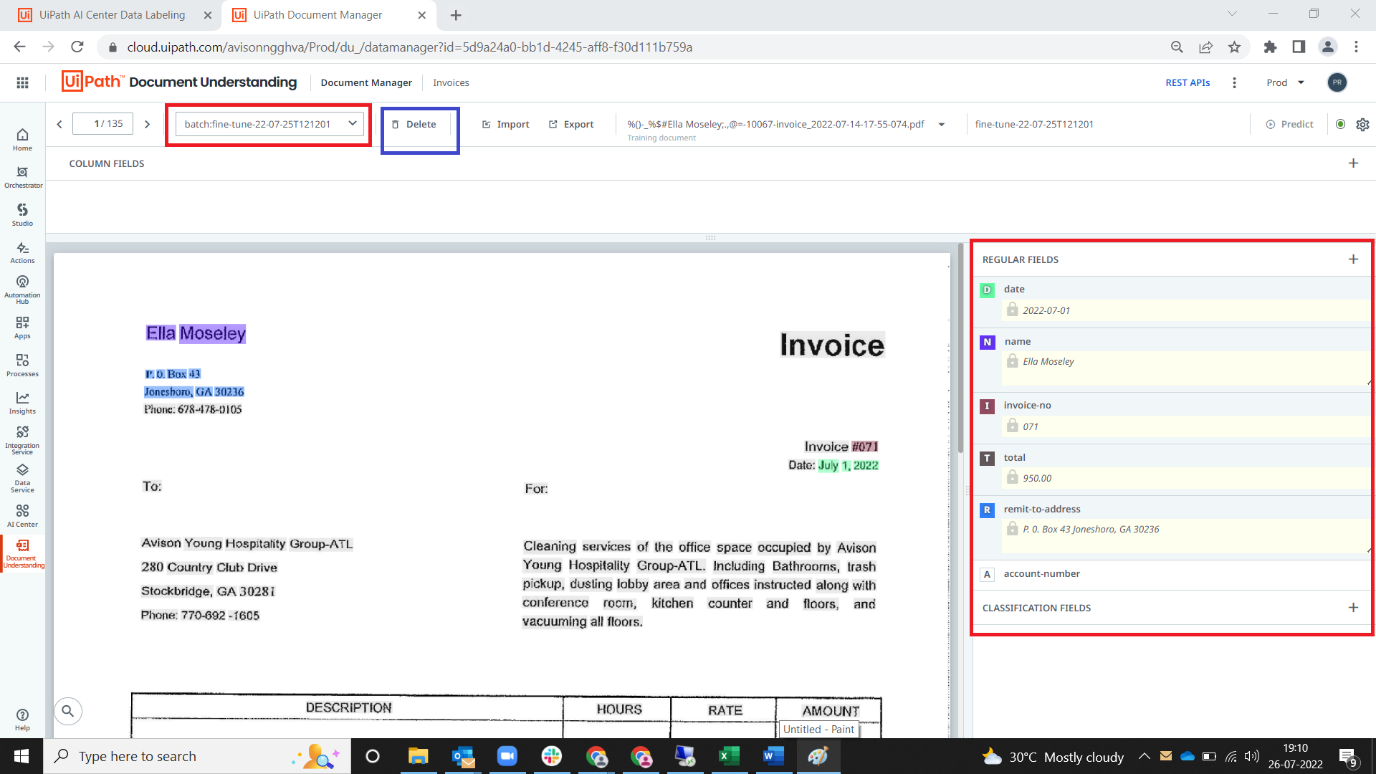
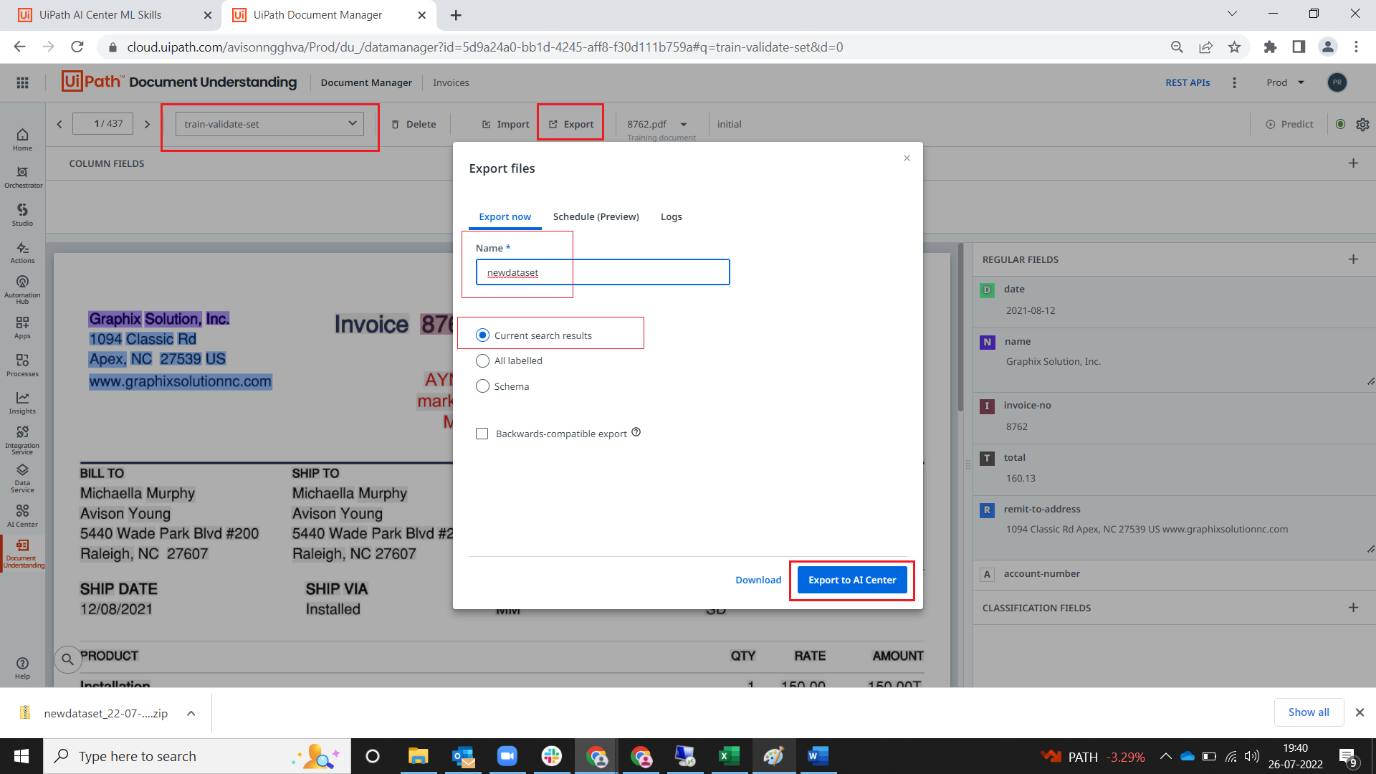
11. Select “train-validate-set” in dropdown. Click export -> give name, select current search results and export to AI center.
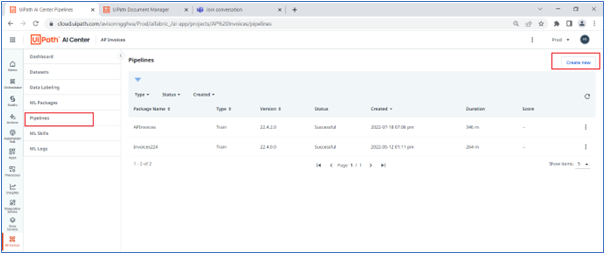
12. Navigate to pipelines pages and use create new pipeline option.
An Evaluation Set is a batch of invoices that are leveraged as a "Benchmark" to see if the changes you are making to the machine learning model are increasing or decreasing the models effectiveness at extracting information from the Evaluation Set. Please see "Setting up Evaluation Set" below for details.
13. Fill pipeline details as below screenshot by filling corresponding package versions and datasets (recent exported)
-Train Run
-Major Version 22.2.4 (Recent Major Version)
-Minor Version 0
-Select Input dataset -> InvoicesDataset/export/filename created
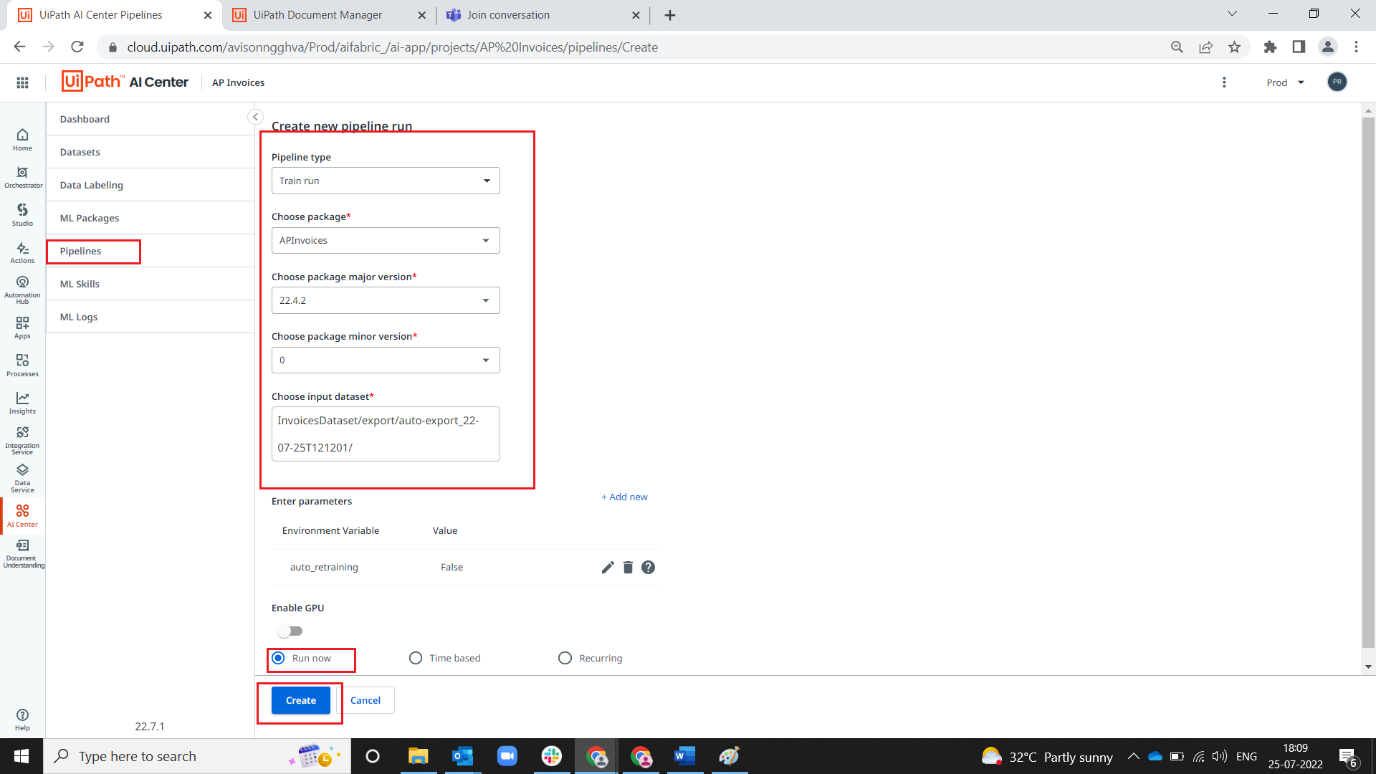
Note: When running Evaluation's select Recent Minor Version. When ReTraining, select Minor Version of (0).
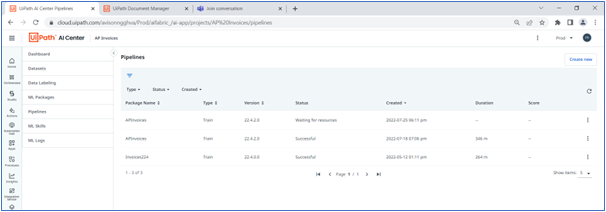
14. Wait till the pipeline status changes to Successful (it will take a lot of time depending on dataset size).
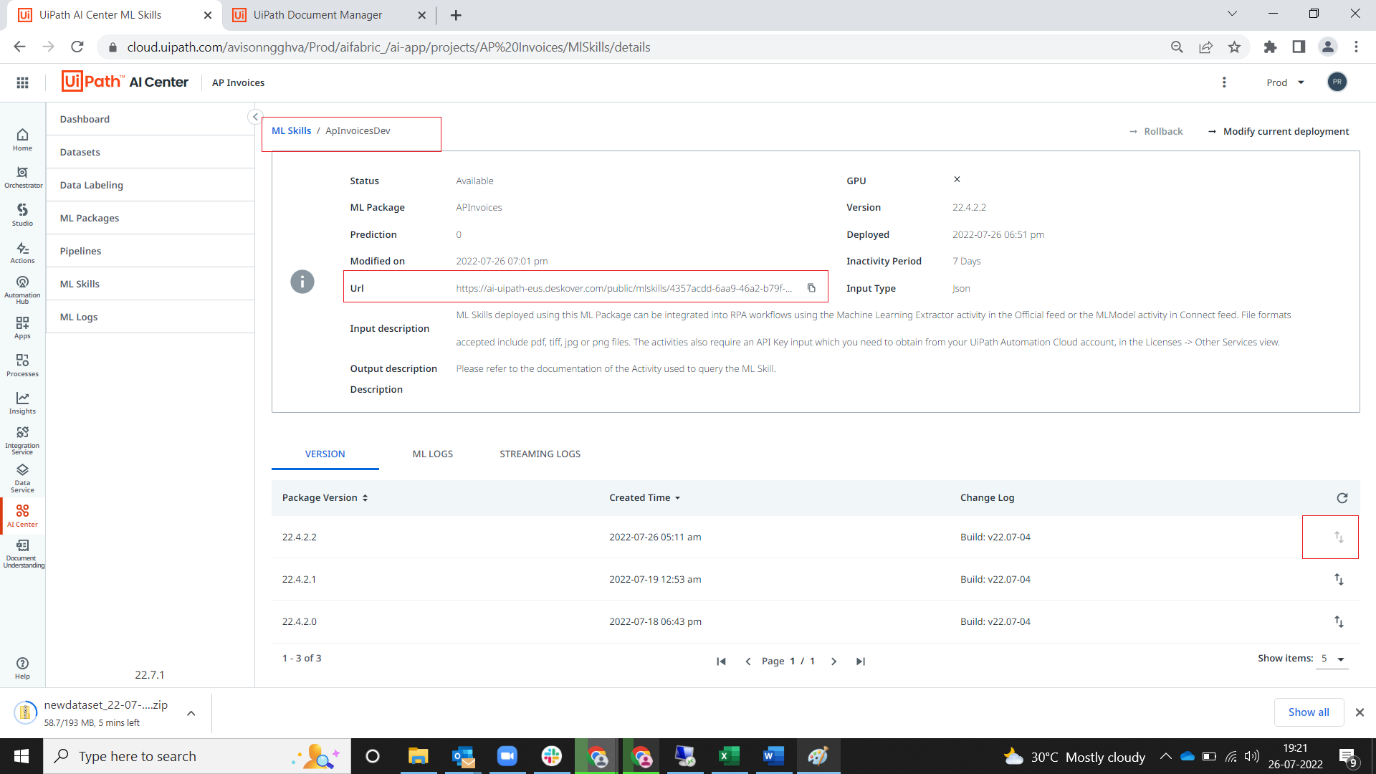
14. Navigate to ml skill page
Note: For Invoice Processing, it's APInvoicesDev

15. Upgrade new version of trained model by clicking up/down arrow.
16. Copy URL and update the asset (For Invoice Processing, “DUProcess_InvoicesEndpoint”) in QA for testing.
17. If test results are passed, go to ML skill -> (For Invoice Processing, InvoiceSkill2).
18. Upgrade new version of trained model by clicking up/down arrow.
19. Copy URL and update the asset (for Invoice Processing, “DUProcess_InvoicesEndpoint”) in PROD.
Setting up Evaluation Set: In order to setup an Evaluation Set, go to "Data Tagging" and select DropDown for "Evaluation Set". Import Documents to be the Evaluation Set. These will be used to benchmark how well your existing and new model perform on the set of data.

Note: This dataset should not include invoices in your existing model. The purpose is to leverage your model on foreign data to see how well it performs.
Export Evaluation DataSet - Export just the Evaluation DataSet by filling in name, and exporting to AI Center.
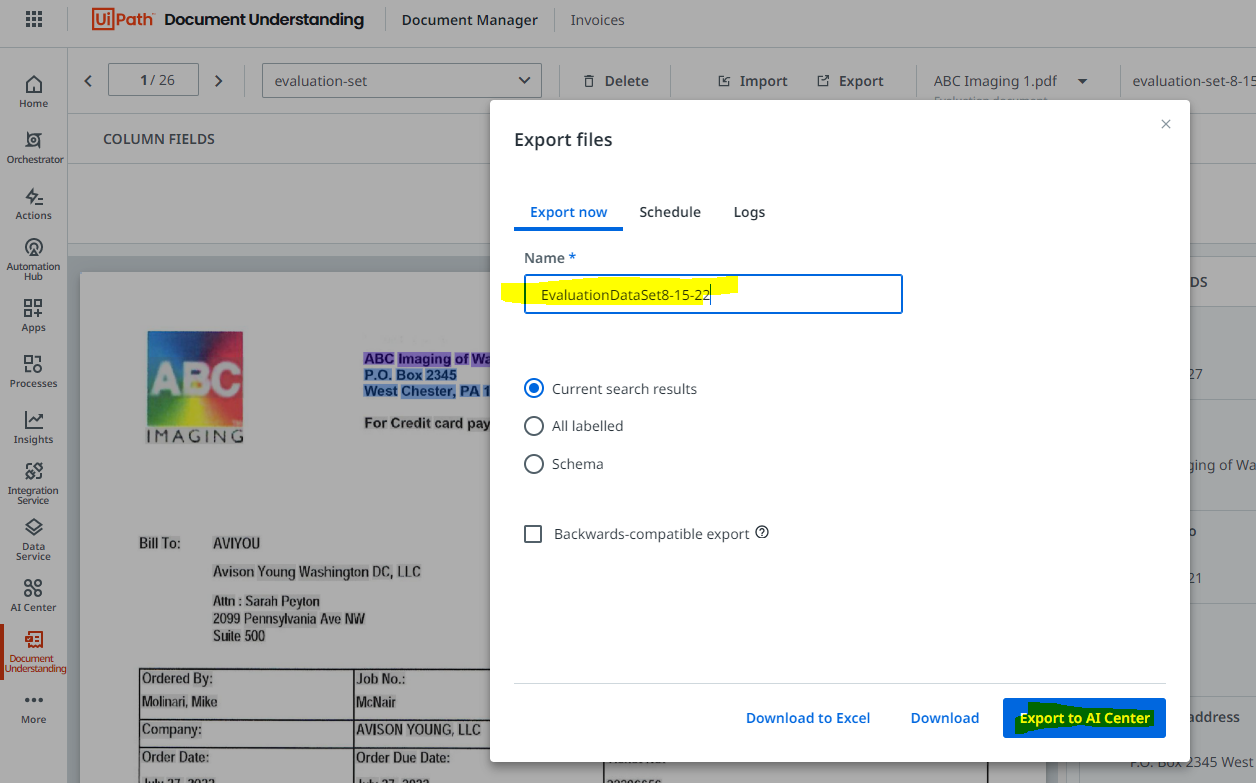
Running Pipeline on Evaluation Set - Before promoting your new ML Model to Production, you will want to benchmark it's performance against this training set. To do this, when you are creating your pipeline, select only "Evaluation Run".
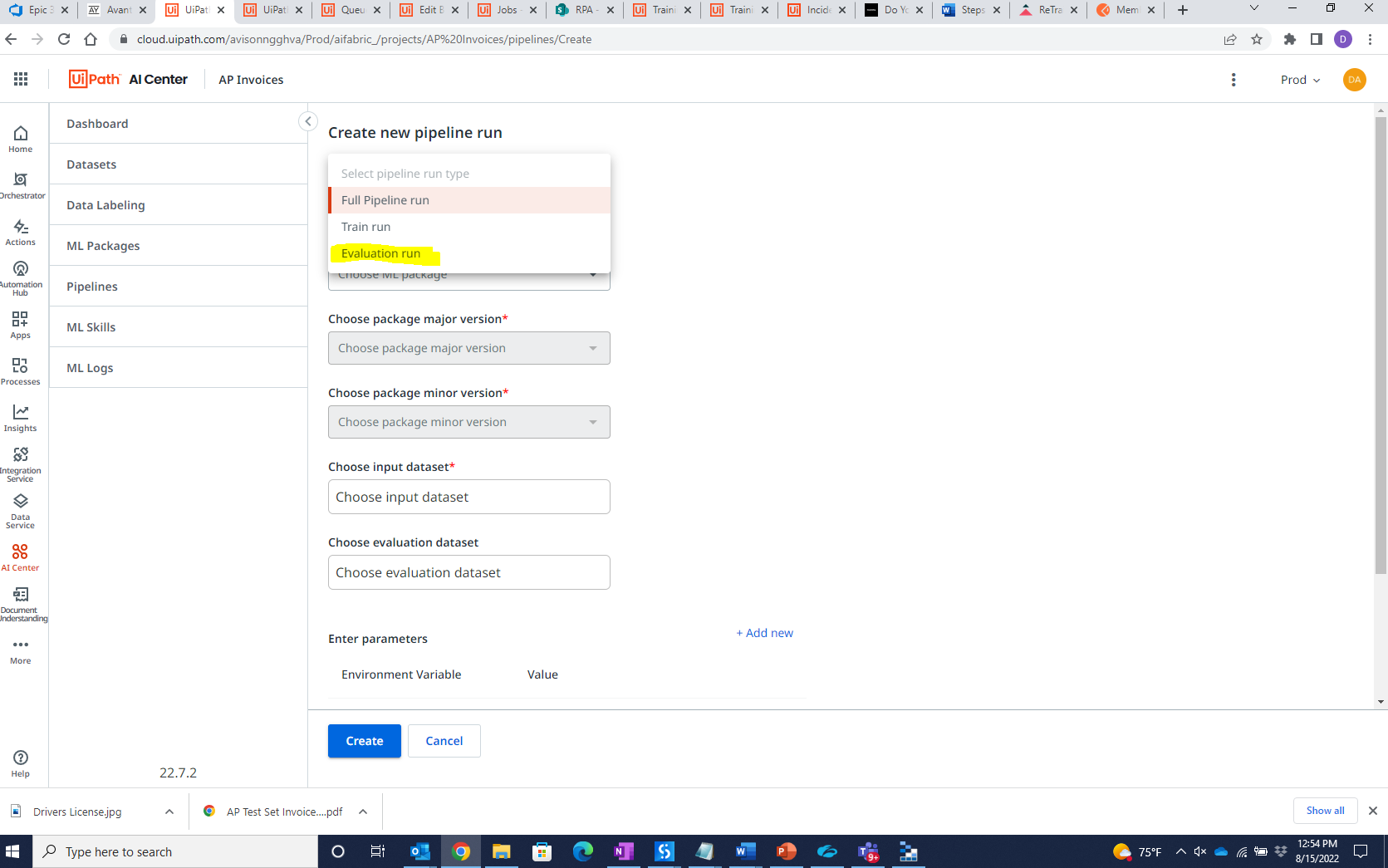
Go to pipeline in AIC -> Create New
Select pipeline run type -> Evaluation-run
Select ML package
Major version -> 22.2.4
Minor version -> version you want to evaluate. Mostly new version obtained by train.
Select Input dataset -> InvoicesDataset/export/exported evaluation set folder name.
Once, the pipeline run is completed, you would see the score. You can compare them with the previous evaluation scores.
Export Evaluation DataSet.

Comments
0 comments
Please sign in to leave a comment.